MosMos favicon

MosMos

MosMos is a Mac voice-to-text tool that offers context-aware dictation refinement, custom vocabulary recognition, and multi-speaker meeting notes.

Meeting AssistantTranscribes spoken voice into text…Identifies multiple speakers during…Extracts action items with assignees…Context-Aware Voice Typing
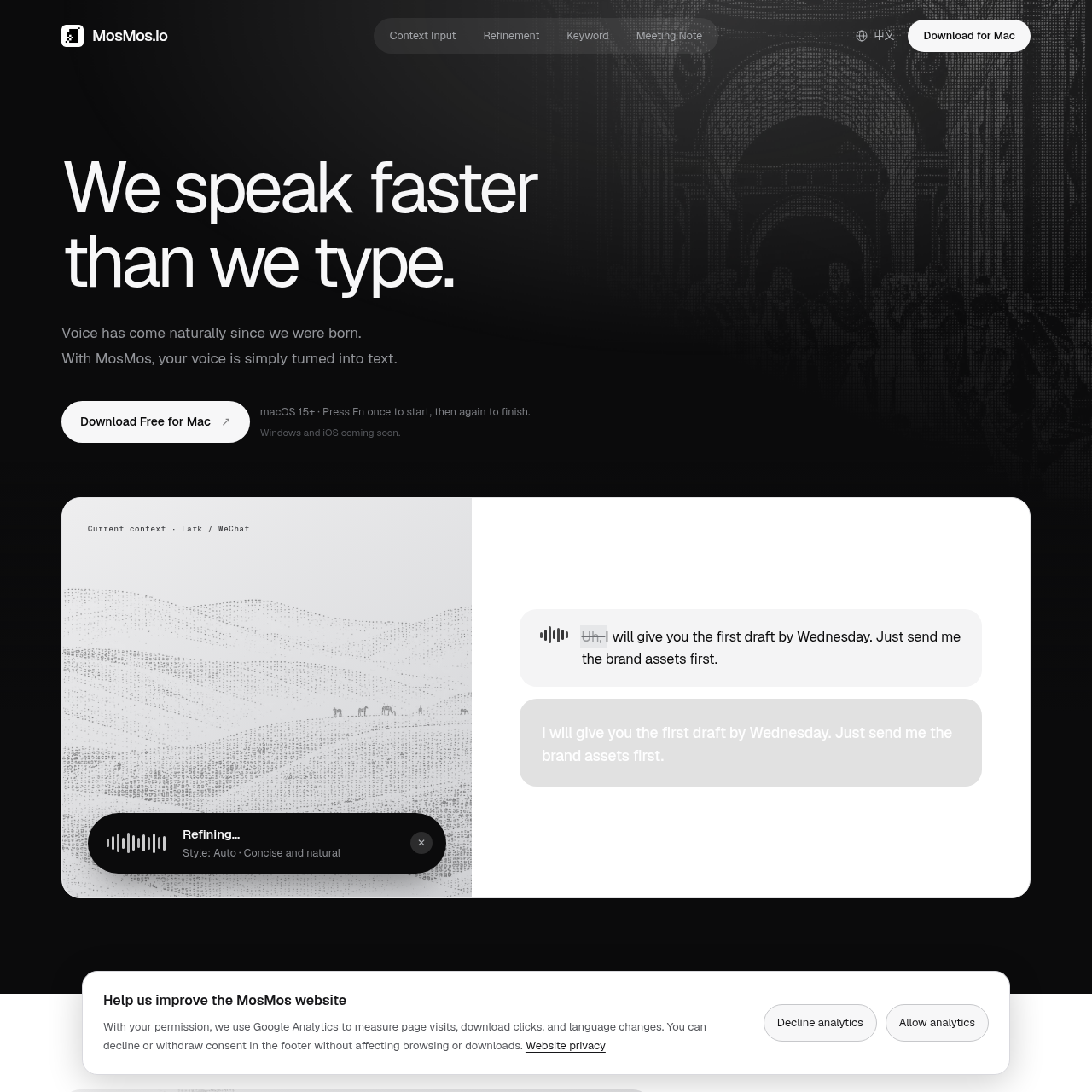
MosMos product interface screenshot
Listed on AIToolly

What Is MosMos? Product Overview

What the product does and how it is positioned

MosMos is a desktop speech-to-text application designed for macOS 15 and above. It operates directly inside text input fields across various applications, converting spoken language into formatted text without requiring users to dictate punctuation manually.

Beyond basic voice typing, the software includes multi-speaker meeting recording, structured meeting note generation, assignable to-do item extraction, and custom vocabulary management for names and specialized terms.

What Can You Use MosMos For?

Source-supported ways to use the product

In-App Voice Dictation

Dictate messages, emails, documents, or terminal commands with automatic refinement matched to the active application.

Meeting Recording and Summarization

Record discussions using a dedicated keyboard shortcut to generate speaker-attributed transcripts, key takeaways, and action items.

How to Use MosMos

The documented workflow, where available

  1. 1

    Select Text Field

    Focus the cursor inside any text field in a supported application, such as an email client, chat app, document, or terminal.

  2. 2

    Start Speaking

    Press the Fn key once to activate voice typing mode and speak naturally without dictating punctuation.

  3. 3

    Insert Refined Text

    Press the Fn key a second time to stop recording, allowing MosMos to adapt to context, apply custom keywords, refine grammar, and paste the text.

  4. 4

    Record Meeting Notes

    Press Fn + Shift to initiate continuous multi-speaker recording, producing a full transcript, summary, and action items upon completion.

Voice Typing Modes and Output Refinement

MosMos offers two primary operating modes managed via keyboard shortcuts. Standard voice typing is initiated and concluded using a single press of the Fn key, operating inside whatever text area is currently focused.

For group discussions, pressing Fn + Shift launches continuous meeting recording. This mode differentiates between multiple speakers, retains a complete transcript, and outputs structured takeaways alongside assigned to-do items.

  • Basic mode preserves exact spoken phrasing without modifications.
  • Standard mode cleans up grammatical errors and sentence flow.
  • Advanced mode restructures the spoken message into a condensed draft.
  • Custom keyword entries ensure names, homophones, and proper nouns are retained accurately.

What to Test Before Choosing MosMos

Checks to run with your own material and workflow

  • Verify that your system meets the minimum operating system requirement of macOS 15 or later.
  • Check that your primary applications permit standard text insertion through keyboard shortcut triggers.
  • Review whether custom vocabulary configuration accurately preserves company-specific proper nouns and homophones.

MosMos Sources and Last Checked

What was checked and when

Official source
https://mosmos.io/
Last checked

MosMos Frequently Asked Questions

Answers based on the source-checked product record

Which operating systems are currently supported by MosMos?

MosMos is available on macOS 15 and newer, with Windows and iOS versions planned for future release.

How do users control text refinement levels in MosMos?

Users can select from Basic for verbatim transcription, Standard for grammar and flow refinement, or Advanced for concise rewriting.

What shortcuts are used to operate MosMos?

Press the Fn key once to start voice typing and again to finish, or press Fn + Shift to begin meeting recording mode.

Where is user history stored in the macOS application?

According to the official documentation, user history recorded in the macOS app remains stored locally on the device.

What information does MosMos extract from meeting recordings?

MosMos generates a multi-speaker transcript, meeting context, attendees, key takeaways, and action items with assignees and due dates.

Explore other recently added tools in the same category.