Capsomnia
Capsomnia: Transform Your Caps Lock into a Physical Keep-Awake Switch for MacBook
Capsomnia is an open-source macOS utility that turns your Caps Lock key into a physical toggle to prevent sleep. It allows your MacBook to continue running AI agents, SSH sessions, and downloads even with the lid closed, using the keyboard LED as a status indicator.
2026-07-27
0.9K
Capsomnia Product Information
Capsomnia: Give Your Caps Lock Key a Real Job
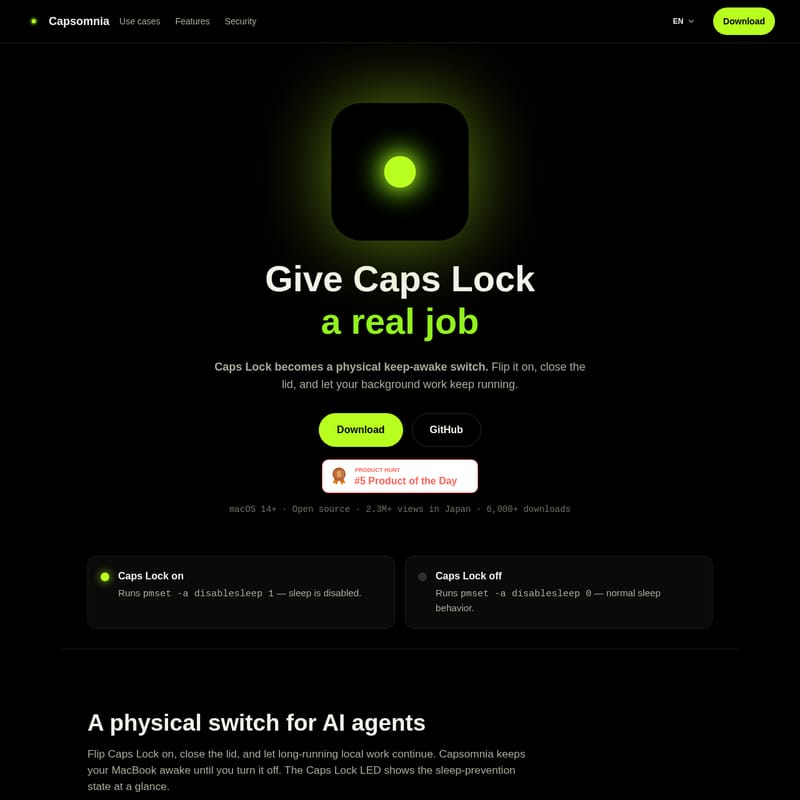
In the world of macOS productivity, managing system sleep behavior is often a digital chore. Capsomnia changes this paradigm by transforming your physical Caps Lock key into a dedicated, tactile keep-awake switch. Designed specifically for macOS 14+, Capsomnia allows users to maintain system activity and network connectivity even when the MacBook lid is closed. Whether you are running complex AI agents, maintaining SSH sessions, or waiting for large builds to finish, Capsomnia ensures your workflow remains uninterrupted.
With over 2.3 million views in Japan and more than 6,000 downloads, Capsomnia has established itself as a lightweight yet powerful tool for power users who need their hardware to work as hard as they do.
What is Capsomnia?
Capsomnia is a small, open-source Mac application focused on closed-lid continuity, physical status visibility, and transparent security. At its core, Capsomnia acts as a bridge between your physical keyboard and the system's power management settings. By toggling the Caps Lock key, you can instantly disable or enable the system's sleep behavior.
When the Caps Lock LED is lit, Capsomnia is active, and your Mac is prevented from sleeping. When the light is off, your MacBook returns to its normal power-saving behavior. It is a simple, elegant solution for those who want a physical indicator of their Mac's power state without cluttering their macOS menu bar.
The Technical Foundation
Capsomnia operates by interacting directly with the macOS pmset utility:
- Caps Lock On: The app runs
pmset -a disablesleep 1, effectively disabling sleep. - Caps Lock Off: The app runs
pmset -a disablesleep 0, restoring standard sleep settings.
Key Features of Capsomnia
Capsomnia is built with a focus on simplicity and functionality. Here are the primary features that make it a must-have utility for MacBook users:
Closed-Lid Continuity
The primary feature of Capsomnia is its ability to keep work running with the lid closed. Typically, closing a MacBook lid triggers sleep mode, which pauses local jobs and disconnects network sessions. By flipping the Caps Lock switch to "on," you can close your MacBook and trust that your local jobs will keep running and your machine will remain reachable over SSH.
Physical State Visibility
Unlike other sleep-prevention apps that hide in the menu bar, Capsomnia utilizes the Caps Lock LED to show its status. This physical status visibility means you can check if your Mac is in "keep-awake" mode with a single glance at your keyboard. This helps keep your digital workspace clean while providing a tactile confirmation of the app's state.
Fully Open Source
Security and transparency are paramount. Capsomnia is released under the MIT License and is completely free. Users are encouraged to visit the GitHub repository to inspect the source code, package install scripts, helper commands, and the security model before installation.
Custom Shortcut Flexibility
If you already use the Caps Lock key for another purpose, such as switching input sources or as an additional modifier, Capsomnia allows you to assign a preferred custom shortcut to turn the sleep prevention on and off. Regardless of the trigger, the keyboard’s green Caps Lock light will remain lit while Capsomnia is active to signal that sleep is disabled.
Practical Use Cases
Capsomnia is designed for modern workflows that require persistent uptime. Here are several scenarios where Capsomnia excels:
1. Persistent AI Agents
Modern developers often use AI agents like Codex or Claude Code for long-running tasks. These tasks can take significant time to process. By using Capsomnia, you can flip the switch, close the lid, and let your local AI work continue to completion without interruption.
2. Remote SSH Sessions
For system administrators and developers, losing a connection mid-session can be frustrating. Capsomnia allows you to drive your Mac remotely without it dropping into sleep, ensuring your SSH sessions stay active as long as the network is available.
3. Long Builds and Downloads
Large software compiles and multi-gigabyte downloads often require the computer to stay awake for extended periods. With Capsomnia, these tasks can finish on their own time while your MacBook is safely tucked away with the lid closed.
4. Continuous Mobile Connections
Maintain connections for Codex Mobile and other mobile-to-Mac sessions. Capsomnia ensures that your mobile work does not stop just because you moved away from your desk or closed your laptop.
How to Use Capsomnia
Using Capsomnia is designed to be as intuitive as using a light switch. Follow these steps to manage your Mac's sleep state:
- To Disable Sleep: Flip the Caps Lock key to the On position. The green LED will light up, and Capsomnia will run the command to disable system sleep.
- To Work with Lid Closed: While Caps Lock is on, you may close your MacBook lid. Your background tasks, downloads, and remote sessions will continue to run.
- To Restore Normal Sleep: Flip the Caps Lock key to the Off position. The LED will turn off, and the system will return to its default sleep behavior.
- Using Custom Keys: If you have assigned a custom shortcut, use that key combination to toggle the state. The Caps Lock LED will still serve as your visual indicator.
- Quitting the App: If you quit the Capsomnia app, it will automatically restore normal sleep behavior to your Mac.
Note: Using your MacBook with the lid closed while sleep is disabled can increase heat and battery drain. Always ensure proper airflow and monitor your power levels and runtime.
Security Model
Capsomnia is built with a rigorous security model to protect your system. The menu bar application runs as the current user and never requires root access for its main operation. Because changing system sleep settings requires elevated privileges, Capsomnia utilizes a fixed, root-owned helper tool via passwordless sudo.
Security Highlights:
- No Network Requests: Capsomnia does not connect to the internet.
- No Telemetry: Your usage data is never collected or sent anywhere.
- No Accounts: No registration or login is required to use the software.
- Limited Sudo Access: The sudoers rule is strictly limited to three specific commands executed through the helper tool:
sudo -n /Library/PrivilegedHelperTools/capsomnia-pmset on(Runspmset -a disablesleep 1)sudo -n /Library/PrivilegedHelperTools/capsomnia-pmset off(Runspmset -a disablesleep 0)sudo -n /Library/PrivilegedHelperTools/capsomnia-pmset display-sleep(Runspmset displaysleepnow)
This ensures that the app can only perform the specific power management tasks it was designed for, maintaining the integrity of your macOS installation.
Frequently Asked Questions (FAQ)
Q: What happens if I quit Capsomnia? A: Quitting the application will immediately restore your Mac's normal sleep behavior, ensuring your power settings return to their default state.
Q: Does Capsomnia work on all MacBooks? A: Capsomnia requires macOS 14+. It is specifically optimized for MacBook users who need closed-lid functionality.
Q: Will keeping my lid closed while the Mac is active cause overheating? A: Disabling sleep while the lid is closed can increase heat and battery drain. It is important to mind your MacBook's airflow and ensure it is connected to power if running intensive tasks for long periods.
Q: Is Capsomnia free to use? A: Yes, Capsomnia is completely free and open-source, released under the MIT License. You can find the full source code and documentation on their GitHub repository.
Q: Can I use a key other than Caps Lock? A: Yes. While the app is named after the Caps Lock key, you can assign a preferred custom shortcut within the app settings to toggle the sleep-prevention state.