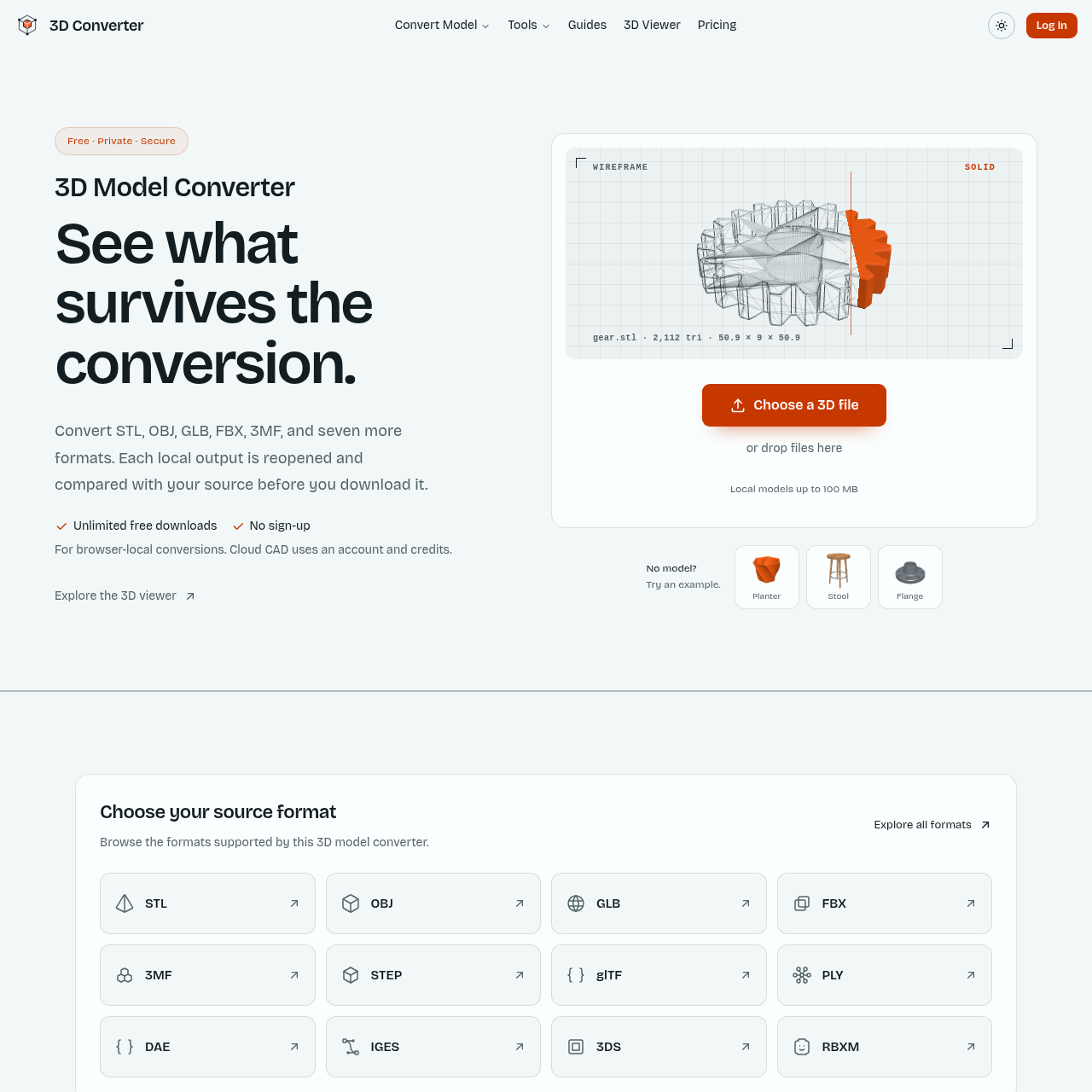
3D Converter runs common mesh and scene conversions in the browser and compares local exports with their source files before download.
Animation & 3D ModelingPackages glTF and its referenced…Extracts static meshes from a glTF sceneAccepts referenced MTL, BIN, and image…Browser-local conversion3d converterSTL to OBJSTL to STEP
Listed on AIToolly
What Is 3D Converter? Product Overview
What the product does and how it is positioned
A browser-based 3D model converter for STL, OBJ, PLY, GLB, and glTF, with preview, route-specific settings, and validated downloads.
3D Converter handles common file handoffs for mesh editing, 3D printing, and web delivery. Available output formats and settings depend on the source file.
The 3D viewer shows dimensions and mesh statistics before conversion. After a local conversion, a comparison report and route-specific warnings help identify what changed and what the target format cannot carry.
What Can You Use 3D Converter For?
Source-supported ways to use the product
Prepare a geometry-only printing mesh
The GLB-to-STL route extracts geometry for printing when scene materials, textures, and animation are not needed.
Package a scene for web delivery
The glTF-to-GLB route combines the scene and its referenced resources into a single file.
Move scene geometry into a mesh editor
The GLB-to-OBJ route exports scene geometry for mesh editing.
How to Use 3D Converter
The documented workflow, where available
1
Add the source model
Select the model to see the output formats available for that source.
2
Include referenced files
Add any MTL, BIN, or image files referenced by the model.
3
Choose the target and run the conversion
Select an output format, review the route settings and limitations, and run the conversion.
4
Review the result
Compare the source and output and inspect any warnings before downloading.
What the target format can carry
The target format determines which kinds of model data can be represented. STL stores triangle geometry and facet normals, while GLB can carry a scene with materials, textures, nodes, and animation.
The converter automatically reopens each local export for comparison with its source. The comparison report is available before download.
OBJ can reference a separate MTL file and images.
glTF can reference separate BIN and image files.
The glTF-to-GLB route packages the scene and its resources into one file.
3D Converter Pricing
Human-maintained commercial information
subscriptionfreemium
USD 9.9/month
Pricing can change. Confirm the current plan and billing terms on the official site before purchasing.
What to Test Before Choosing 3D Converter
Checks to run with your own material and workflow
Confirm that the required source-to-target conversion route is available and exposes the settings needed for the model.
Check the route warnings for any properties the target format cannot carry.
Verify that the source model is within the 100 MB limit if the browser-local path is required.