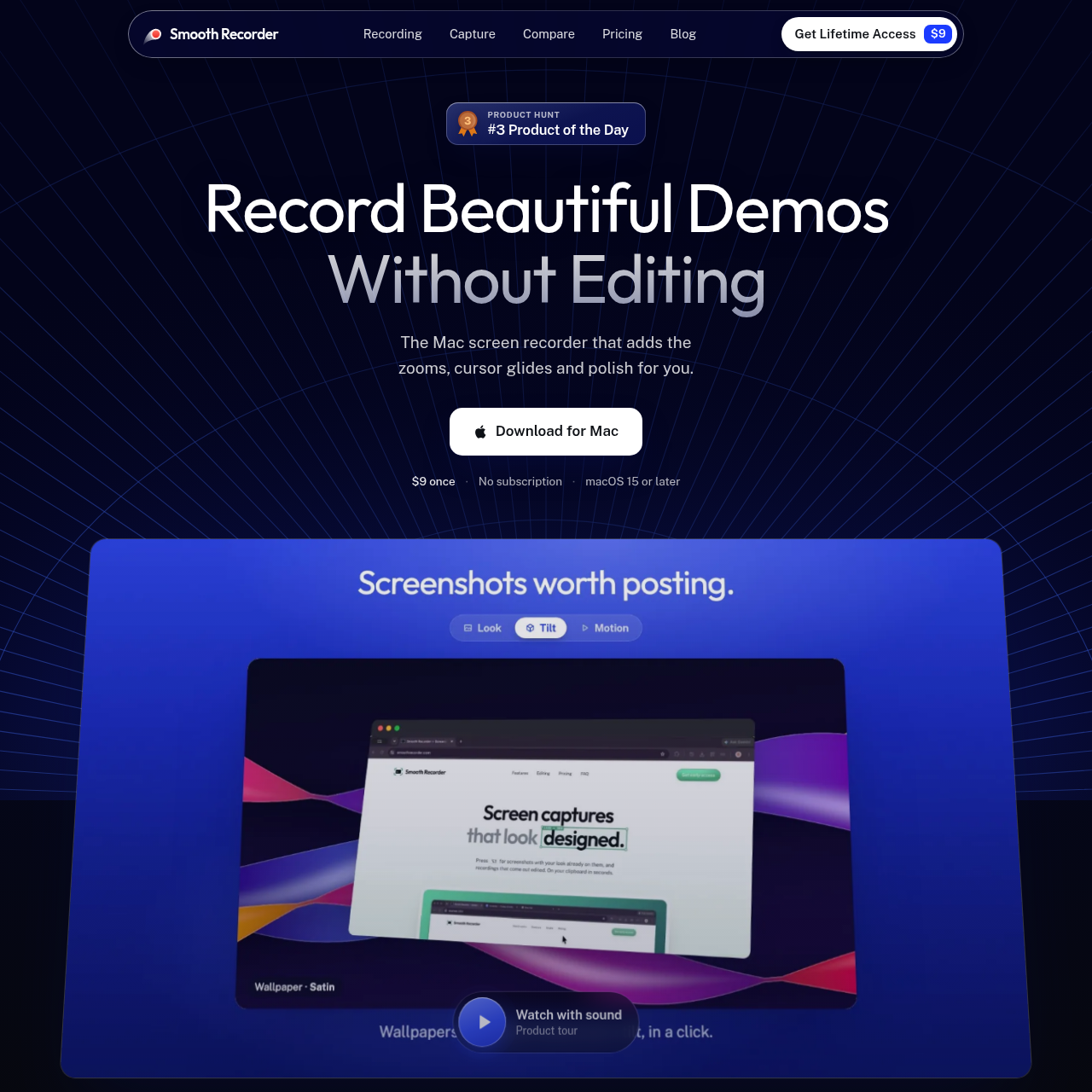
Smooth Recorder is a native macOS recording and capture utility that automates zoom paths, cursor smoothing, on-device transcription editing, and redaction.
VideoSimultaneous capture of screen, webcam,…Automated click-based zoom tracking and…Text-driven video trimming and…Scrolling full-page screenshot capture
Listed on AIToolly
What Is Smooth Recorder? Product Overview
What the product does and how it is positioned
Smooth Recorder is a native macOS application engineered using SwiftUI and AppKit to capture and refine screen recordings and still images. Designed without browser wrappers or external cloud dependencies, it executes speech transcription, text recognition, and sensitive data detection directly on local hardware.
The software combines multi-source recording—including camera, microphone, and internal system audio—with automatic presentation enhancements such as click tracking, cursor smoothing, and 3D camera angles. In addition to video creation, it provides a shortcut-driven overlay for still captures, full-page scrolling shots, text extraction, and privacy redaction.
What Can You Use Smooth Recorder For?
Source-supported ways to use the product
Software Demo Production
Presenters can record application walkthroughs in a single pass while the app automatically generates click zooms, cursor smoothing, and word-by-word captions.
Text-Based Video Trimming
Video creators can cut mistakes, remove retakes, or purge filler words such as um and er by editing the generated transcript rather than splicing timeline tracks.
Product Screenshot Sharing
Team members can prepare interface images using background wallpapers, annotations, 3D tilt effects, and automated redaction of sensitive credentials or personal details.
Animated Feature Teasers
Designers and marketers can convert static interface screenshots into short 3D promotional videos that glide, zoom, and export in 1080p or 4K at 60 fps.
How to Use Smooth Recorder
The documented workflow, where available
1
Trigger Capture Overlay
Press the keyboard shortcut to bring up the capture interface, choose the target display area or window, and select a capture mode.
2
Record or Capture Content
Capture a still image, scrolling page, or start recording with connected camera feeds, microphone inputs, and system audio.
3
Refine via Transcript or Editor
Edit the generated text transcript to cut unneeded video segments, strip filler words, or open still captures to apply redactions, annotations, and wallpaper backgrounds.
4
Export Finished Media
Save the completed media directly to the clipboard, store it in the notch library, or export video files as MP4, MOV, or GIF up to 60 fps.
On-Device Automation and Privacy Controls
Smooth Recorder relies on native Apple frameworks to handle processing locally, avoiding browser runtimes and cloud-based transcription pipelines. Real-time audio parsing generates synchronized word-by-word captions, enabling text-based video cuts where deleting a sentence or removing detected filler words automatically closes up the underlying video timeline.
The utility's Smart Redact tool operates under the same local privacy model, scanning captured screen regions for personally identifiable information and sensitive development keys. Users can obscure detected data points in a single action using blur, pixelation, or black bar overlays before sharing.
Native SwiftUI and AppKit architecture operating on macOS 15 or later
Local transcription engine supporting text-driven timeline trimming and filler-word removal
Smart Redact scanning for phone numbers, email addresses, payment cards, passwords, API keys, IP addresses, faces, and currency values
Offline processing design keeping captions, text recognition, and visual redactions on the local Mac
What to Test Before Choosing Smooth Recorder
Checks to run with your own material and workflow
Confirm that all target workstations run macOS 15 or later before deployment.
Verify whether the on-device transcription engine accurately captures technical terminology and accents.
Check that Smart Redact correctly flags all proprietary data patterns and custom API token formats used in internal software.
Review output requirements to ensure MP4, MOV, or GIF formats up to 4K 60 fps satisfy publishing specifications.
Answers based on the source-checked product record
Which operating systems and frameworks are required to run Smooth Recorder?+
Smooth Recorder is a native Mac application built with SwiftUI and AppKit, requiring macOS 15 or later. It does not run as a browser extension or within Electron.
How does transcript-based video editing work in the application?+
Audio is transcribed on the local Mac. Deleting a transcribed word or sentence cuts that section from the video, and filler words like um, uh, and er can be eliminated in one click.
What types of sensitive information can Smart Redact detect?+
Smart Redact scans on-device to identify emails, phone numbers, payment card numbers, API keys, passwords, faces, links, IP addresses, and monetary amounts, concealing them with blur, pixelation, or solid bars.
What capture modes are available through the overlay shortcut?+
The overlay shortcut provides five modes: area or window screenshots, screen recording with camera and audio, looping GIF creation, full-page scrolling captures, and on-screen text extraction.
Does Smooth Recorder transmit recordings, transcripts, or personal data to cloud servers?+
No, transcription, optical text recognition, and redaction analyses are private by default and run entirely on the local Mac without cloud processing.
More Video AI tools
Explore other recently added tools in the same category.