Pocket Screen
Pocket Screen: The Essential macOS Menu Bar Utility for Picture-in-Picture Productivity
Pocket Screen is a professional macOS menu bar utility from Toybird Labs that creates an always-on-top Picture-in-Picture reference window. Built with ScreenCaptureKit, it allows users to pin browsers, documents, and videos as compact views while multitasking. It features keyboard shortcuts, space-aware visibility, and strict local-only privacy for macOS 14+ users.
2026-07-19
--K
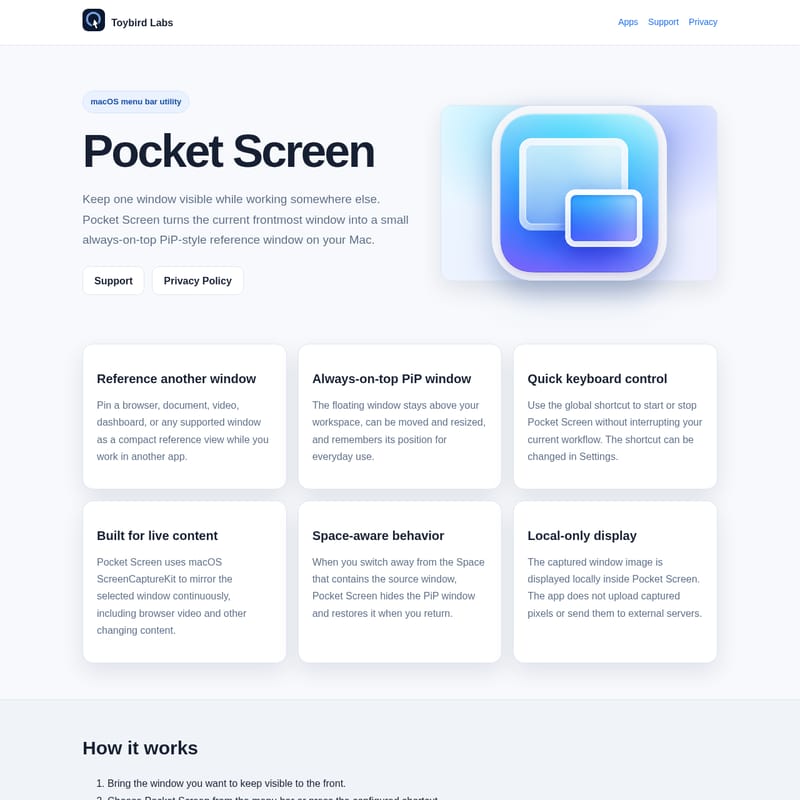
Pocket Screen Product Information
Pocket Screen: The Essential macOS Menu Bar Utility for Picture-in-Picture Productivity
In the modern digital workspace, multitasking is more than just a skill—it is a necessity. However, switching back and forth between multiple applications can disrupt your flow and reduce efficiency. To solve this problem, Toybird Labs has developed Pocket Screen, a sophisticated macOS menu bar utility designed to streamline your workflow by keeping critical information exactly where you need it: right in front of your eyes.
Pocket Screen is a dedicated productivity tool that allows you to maintain a compact, always-on-top PiP-style reference window on your Mac. Whether you are a developer, a writer, a student, or a data analyst, Pocket Screen ensures that your most important source material remains visible while you work across different applications.
What’s Pocket Screen?
Pocket Screen is a lightweight yet powerful macOS menu bar utility that turns any active window into a floating, always-on-top reference view. Unlike traditional window management, Pocket Screen creates a Picture-in-Picture (PiP) experience for any supported window on your system. This means you can take a browser tab, a PDF document, a live video feed, or a project dashboard and shrink it down into a persistent, high-visibility thumbnail that stays layered above your primary workspace.
Developed by Toybird Labs, Pocket Screen is built to feel like a native part of the macOS experience. It resides in your menu bar, ready to be activated at a moment's notice, providing a seamless way to reference another window without sacrificing screen real estate or constantly toggling through the Cmd+Tab switcher.
Features of Pocket Screen
Pocket Screen is packed with features designed to enhance your focus and organization. Here are the key technical and functional highlights of this macOS menu bar utility:
Always-on-Top PiP Window
The core functionality of Pocket Screen is its ability to create a floating PiP window. This window is strictly always-on-top, meaning it will never get lost behind other applications. You can move the window to any corner of your screen and resize it to fit your specific needs. Additionally, Pocket Screen is intelligent enough to remember its position for everyday use, so you don't have to reconfigure your workspace every time you launch the app.
Reference Another Window with Ease
With Pocket Screen, you can pin almost any supported window as a compact reference view. This includes:
- Browsers: Keep a web-based tutorial or documentation visible while you code.
- Documents: Reference a PDF or a text file while drafting a report.
- Videos: Watch live content or instructional videos in a small corner window.
- Dashboards: Monitor real-time analytics or system performance tools.
Quick Keyboard Control
Speed is essential for productivity. Pocket Screen includes a customizable global keyboard shortcut that allows you to start or stop the PiP view instantly. This ensures that you can toggle your Pocket Screen reference window without interrupting your current typing or mouse movement. Users can easily modify this shortcut within the app's Settings menu.
Built for Live Content
Under the hood, Pocket Screen utilizes the advanced macOS ScreenCaptureKit framework. This allows the utility to mirror the selected window continuously and smoothly. Because it uses this high-performance technology, Pocket Screen can handle changing content—such as browser-based video playback or moving graphs—with minimal lag and high clarity.
Space-Aware Behavior
One of the most innovative features of Pocket Screen is its space-aware logic. If you use multiple macOS Spaces (virtual desktops), Pocket Screen behaves intelligently. When you switch away from the Space that contains the original source window, Pocket Screen automatically hides the PiP window to avoid cluttering your other environments. As soon as you return to the original Space, Pocket Screen restores the PiP window to its previous position.
Local-Only Privacy
Privacy is a core pillar of the Toybird Labs philosophy. The captured window image in Pocket Screen is processed and displayed entirely locally. The app does not upload captured pixels to the cloud or send any data to external servers. Your screen content remains on your machine, ensuring a secure environment for professional work.
How to Use Pocket Screen
Getting started with Pocket Screen is simple and intuitive. Follow these steps to begin using your always-on-top reference window:
- Select Your Source: Bring the specific window you want to keep visible (the browser, document, or video) to the front of your screen.
- Activate: Choose Pocket Screen from your macOS menu bar or press your configured global keyboard shortcut.
- Adjust: Once the floating PiP window appears, you can move it to your preferred location or resize it to the desired dimensions.
- Deactivate: When you are finished with your reference, press the keyboard shortcut again or use the menu bar icon to stop the session.
Note on Permissions: To function correctly, Pocket Screen requires macOS Screen Recording permission. This is necessary for the ScreenCaptureKit to capture the selected window and generate the local PiP preview.
Use Case Scenarios
Pocket Screen is a versatile tool that fits into many different professional and creative workflows:
- Software Development: Keep API documentation or a terminal output visible in a Pocket Screen window while you write code in your IDE.
- Online Learning: Place a lecture video or a digital textbook in the Pocket Screen PiP view while taking notes in a separate application.
- Content Creation: Monitor a live stream chat or a reference image using Pocket Screen while editing video or designing graphics.
- Financial Monitoring: Keep a small, always-on-top view of a stock dashboard or crypto ticker active while you perform your daily tasks.
System Requirements
To ensure peak performance and compatibility with the latest macOS features like ScreenCaptureKit, Pocket Screen has the following requirements:
- Operating System: macOS 14 (Sonoma) or later.
- Hardware Support: Designed for both Apple silicon Macs (M1, M2, M3 chips) and Intel Macs.
FAQ
Does Pocket Screen store my screen data?
No. Pocket Screen is designed with a local-only display architecture. Captured pixels are used only for the local PiP preview and are never uploaded or shared externally.
Can I change the shortcut used to trigger Pocket Screen?
Yes. The global shortcut is fully configurable within the Settings menu of the Pocket Screen app, allowing you to choose a key combination that fits your workflow.
What happens to the PiP window when I switch Spaces?
Pocket Screen features space-aware behavior. It will automatically hide the PiP window when you leave the Space containing the source window and reappear when you return.
Does Pocket Screen work with live video?
Absolutely. Because Pocket Screen is built on macOS ScreenCaptureKit, it is specifically designed to handle live, changing content like browser videos and dynamic dashboards seamlessly.
Is Pocket Screen compatible with older versions of macOS?
Currently, Pocket Screen requires macOS 14 or later to take advantage of the latest window management and capture technologies.