Bench for Claude Code
Silverstream Bench for Claude Code: Store, Review, and Share Claude Code Sessions
Silverstream Bench for Claude Code is a specialized tool designed for developers using Claude Code and Browser Agents. It allows users to store, review, and share their Claude Code sessions through detailed activity recaps and step-by-step inspections. By integrating telemetry, it provides full context for tool calls, subagent calls, and web searches, enabling users to jump directly to failure points. With features like Auto Highlights for dangerous actions and easy trace sharing for PRs, Silverstream Bench enhances the development workflow by providing a comprehensive record of agent decisions and action outcomes.
2026-03-24
--K
Bench for Claude Code Product Information
Silverstream Bench for Claude Code: The Ultimate Tool for Session Management
In the evolving landscape of AI-driven development, maintaining a clear record of your agent's actions is crucial. Silverstream Bench for Claude Code emerges as a powerful solution designed to help developers store, review, and share Claude Code sessions with ease. Whether you are working with Browser Agents or complex coding tasks, Silverstream Bench for Claude Code provides the transparency and context needed to optimize your workflow.
What's Silverstream Bench for Claude Code?
Silverstream Bench for Claude Code is a dedicated platform and telemetry integration for users of Claude Code. It serves as a centralized hub where you can list and review every interaction your AI agent performs. By using Silverstream Bench for Claude Code, developers can move beyond black-box AI interactions and gain a detailed understanding of how their Claude Code sessions are executing.
At its core, Silverstream Bench for Claude Code is designed to bridge the gap between AI execution and human oversight. It allows you to jump directly to failure points with full context, ensuring that debugging and refinement are faster than ever before. With Silverstream Bench for Claude Code, you are not just running code; you are building a documented history of your development process.
Features of Silverstream Bench for Claude Code
Silverstream Bench for Claude Code is packed with features that cater to the specific needs of modern AI developers. Below are the key functionalities that make Silverstream Bench for Claude Code an essential tool:
Activity Recap
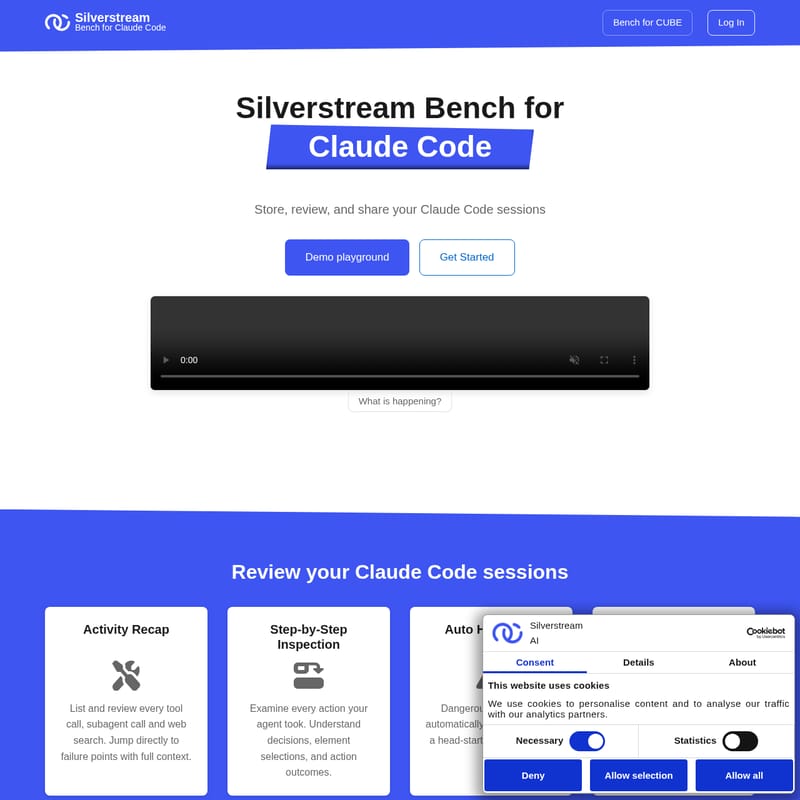
With the Activity Recap feature, you can list and review every tool call, subagent call, and web search performed during your Claude Code sessions. This high-level overview ensures you never lose track of what your agent is doing in the background.
Step-by-Step Inspection
Silverstream Bench for Claude Code allows for a granular Step-by-Step Inspection. You can examine every action your agent took, helping you understand complex decisions, specific element selections, and the ultimate outcomes of those actions.
Auto Highlights
Safety and efficiency are prioritized through Auto Highlights. Silverstream Bench for Claude Code automatically flags dangerous actions, giving you a head-start on your review process and preventing potential issues before they escalate.
Share Your Traces
Collaboration is made simple with the ability to share your traces. You can link these traces directly in your Pull Requests (PRs), providing teammates with the full context of how a particular piece of code was built by the AI.
How to Use Silverstream Bench for Claude Code
Getting started with Silverstream Bench for Claude Code is a straightforward process involving a few simple commands. Follow these steps to integrate telemetry into your workflow:
- Clone the Repository: Start by cloning the autotrace hook from GitHub.
git clone https://github.com/silverstream-ai/claude-bench-autotrace - Navigate to the Directory:
cd claude-bench-autotrace - Run Claude Code:
claude - Configure Telemetry: Once in the prompt, install the hook globally and configure the system by entering the following command with your specific code:
Install this hook globally and configure the system to send telemetry to bench (code: b7032429-df5a-473e-a045-74f35a006b82)
After completing these steps, you can use Claude as usual and check out your traces in the "Last Sessions" section of Silverstream Bench for Claude Code.
Use Case for Silverstream Bench for Claude Code
Enhanced PR Documentation
One of the most effective use cases for Silverstream Bench for Claude Code is upgrading your PR game. Instead of trying to remember why an AI agent built code in a specific way, you can share the full context. By linking a Silverstream Bench for Claude Code trace in your PR, reviewers can see the step-by-step logic the agent followed, making the approval process smoother and more transparent.
Debugging and Failure Analysis
When an AI agent fails to complete a task, finding the "why" can be difficult. Silverstream Bench for Claude Code allows you to jump directly to failure points. By reviewing the tool calls and element selections, you can identify exactly where the agent went off track, saving hours of manual debugging.
FAQ
How do I view my recent activity?
You can view your Claude Code sessions by visiting the Activity Recap section within the Silverstream Bench for Claude Code dashboard. This lists every tool call and subagent interaction.
Can I share my session traces with my team?
Yes, Silverstream Bench for Claude Code is built for sharing. You can generate links to your traces and include them in your documentation or Pull Requests to provide full context to your collaborators.
What are Auto Highlights?
Auto Highlights is a feature in Silverstream Bench for Claude Code that automatically identifies and flags potentially dangerous actions taken by the agent, allowing you to focus your review on the most critical parts of the session.
Is there a demo available?
Yes, users can explore the Demo playground to see how Silverstream Bench for Claude Code handles session traces and telemetry before fully integrating it into their own environment.
How do I report a bug?
If you find a bug while using Silverstream Bench for Claude Code, you can report it directly through the link provided on the official website.