WhatCable
WhatCable: The Essential macOS USB-C Diagnostic Tool for Identifying Cable Speed and Power
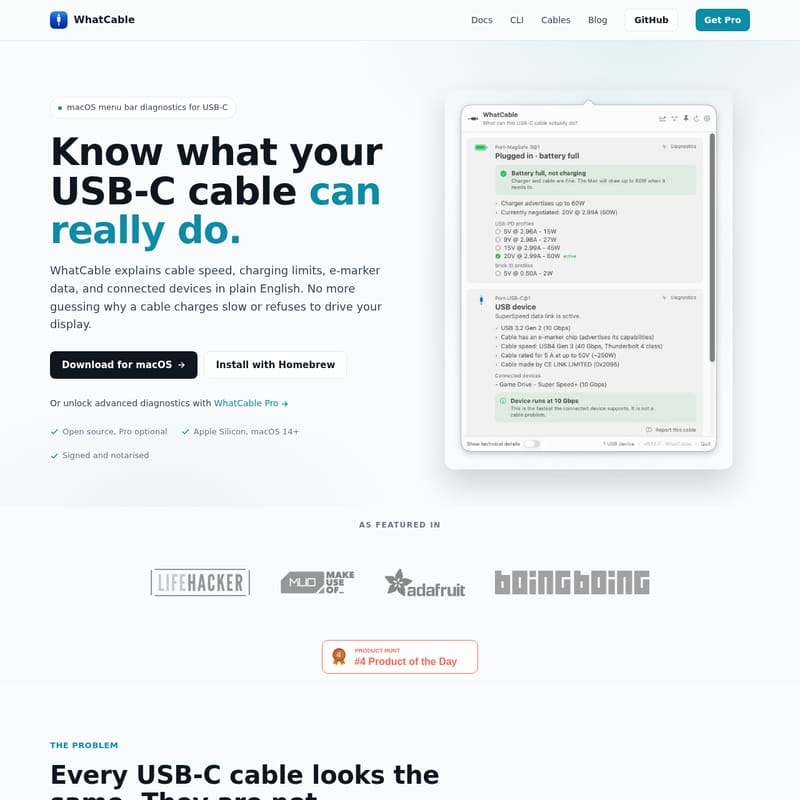
WhatCable is a specialized macOS menu bar diagnostic tool for Apple Silicon Macs, designed to reveal the true capabilities of any USB-C cable. It provides plain-English insights into charging limits, data transfer speeds, e-marker data, and potential bottlenecks, helping users differentiate between identical-looking USB 2.0, USB4, and Thunderbolt 4 cables. Available as both a free open-source app and a Pro version with advanced power metering and port health metrics.
2026-05-26
97.0K
WhatCable Product Information
WhatCable: The Ultimate macOS Menu Bar Diagnostics for Your USB-C Cable
In the modern era of computing, every USB-C cable tends to look identical on the surface. However, their internal capabilities vary wildly. Some are designed only for slow charging, while others can handle 40 Gbps data transfers and dual 4K displays. WhatCable is a powerful macOS diagnostic tool designed to solve this exact problem, providing users with the clarity they need to understand what their cables can really do.
What is WhatCable?
WhatCable is a macOS menu bar application specifically built for Apple Silicon Macs running macOS 14 and later. It serves as a comprehensive diagnostic engine that explains cable speed, charging limits, e-marker data, and connected device contexts in plain English.
By reading the USB-C and USB Power Delivery (USB PD) details that macOS already exposes, WhatCable eliminates the guesswork. Whether you are wondering why a specific USB-C cable is charging your MacBook slowly or why it refuses to drive an external monitor, WhatCable provides the answers directly in your menu bar or through a command-line interface (CLI).
The Problem with Identical Cables
Your drawer may be full of identical-looking cables, but their performance profiles are vastly different:
- USB 2.0: Limited to 480 Mbps and 60W. These charge slowly and offer no video output.
- USB4: Capable of 40 Gbps and 100W. These handle most displays and fast external SSDs.
- Thunderbolt 4: The gold standard, supporting 40 Gbps, 240W charging, and dual 4K displays.
WhatCable ensures you can identify these differences without needing specialized hardware testers.
Key Features of WhatCable
WhatCable offers a suite of diagnostic features that turn complex technical data into actionable information.
1. Charging and Data Bottlenecks
The app provides a plain-English verdict on what is limiting your link. It can identify if the USB-C cable, the charger, or the Mac itself is the reason for a slow charge or reduced data speed. By highlighting the negotiated power profile, you can see if a faster cable would actually improve performance.
2. Cable E-Marker Data Decoding
Many high-quality cables contain an e-marker chip. WhatCable decodes this data to show you the vendor identity, current rating, and USB PD capability flags. This is essential for verifying if a cable actually meets its advertised specifications.
3. Active Transports and Device Identity
WhatCable identifies the specific transport paths—such as USB 2, USB 3, USB4, Thunderbolt, and DisplayPort—active under each physical port. It also matches hubs, docks, and peripherals back to the port they are using, including the negotiated USB speed.
4. Cable Trust Signals
To help you spot suspicious hardware, WhatCable checks e-marker data against the USB Power Delivery spec. It flags unusual findings, such as:
- Vendor IDs not registered with USB-IF (e.g., 0x0000).
- Reserved bit patterns or zero-value metadata.
- Discrepancies, such as a cable claiming 5A current but only reporting USB 2.0 speeds.
5. Engineer Mode
For power users and developers, WhatCable includes an Engineer Mode. By option-clicking or enabling raw details, you can reveal underlying IOKit properties and registry-level facts.
6. Command Line Interface (CLI)
For those who prefer the terminal, the bundled CLI provides quick snapshots and structured JSON output. It includes a --watch mode for live updates as you swap cables during testing.
WhatCable Pro: Advanced Diagnostics
While the free version of WhatCable is open-source and provides essential insights, WhatCable Pro (a one-time £4.99 purchase) unlocks 12 advanced features for power users:
- Live Power Metering: View real-time watts, amps, and voltage per port (updates every 2 seconds).
- Negotiation Diagnostics: See Mac port, cable, and device support side-by-side with the weak link highlighted.
- Port Health Counters: Monitor lifetime resets, shorts, errors, and FET failures per port.
- DP Alt Mode and EDID: Access lane counts, link rates, and full monitor identity.
- PD Contract Inspector: View the full PDO list and active voltage/current contracts.
Use Cases
WhatCable is an indispensable tool for several scenarios:
- Debugging Setup Issues: Quickly determine if a dock isn't working because of a low-bandwidth cable.
- Optimizing Charging: Identify which of your many cables supports 100W+ charging for your MacBook Pro.
- Hardware Verification: Use the cable database and trust signals to check if a newly purchased cable is genuine.
- Scripting and Automation: Use the CLI to pipe JSON data into scripts for repeatable hardware diagnostics.
How to Install WhatCable
WhatCable is signed, notarized, and supports several installation methods on Apple Silicon Macs running macOS 14+.
Installation via Homebrew (Recommended)
This installs both the menu bar app and the CLI tool:
brew tap darrylmorley/whatcable
brew install --cask whatcable
Direct Download
You can download the latest .zip release from GitHub. Simply drag the WhatCable.app into your Applications folder.
CLI Only Installation
For terminal-only setups:
brew tap darrylmorley/whatcable
brew install whatcable-cli
FAQ
Does it work on Intel Macs?
No. Intel Macs use Titan Ridge Thunderbolt controllers that do not expose USB-PD state or cable e-marker data through public macOS APIs. WhatCable requires Apple Silicon (M1 or later).
Is it really free?
Yes, the base app is free and open-source under the MIT license. There are no ads, no tracking, and no telemetry. The Pro version is an optional one-time purchase.
Why does my cable show no e-marker data?
Cheap USB 2.0 cables and cables rated under 3A typically do not have an e-marker chip. If there is no chip, there is no data for WhatCable to decode.
Can it tell me if a cable is fake?
Not definitively, but the "Trust Signals" feature flags values that violate the USB-PD spec. An orange card indicates the cable is "worth checking."
Does it collect any data?
No. The app reads local IOKit data and does not make network requests or collect analytics. You can verify this by checking the source code on GitHub.