Supaste
Supaste: The Ultimate Visual Clipboard History and Screenshot Manager for macOS Productivity
Supaste is a local-first macOS app that transforms your clipboard into a searchable visual history. Effortlessly save, organize, and reuse text, images, code, and screenshots with features like the notch shelf and quick shortcuts.
2026-06-10
19.0K
Supaste Product Information
Supaste: The Premier Visual Clipboard History for macOS
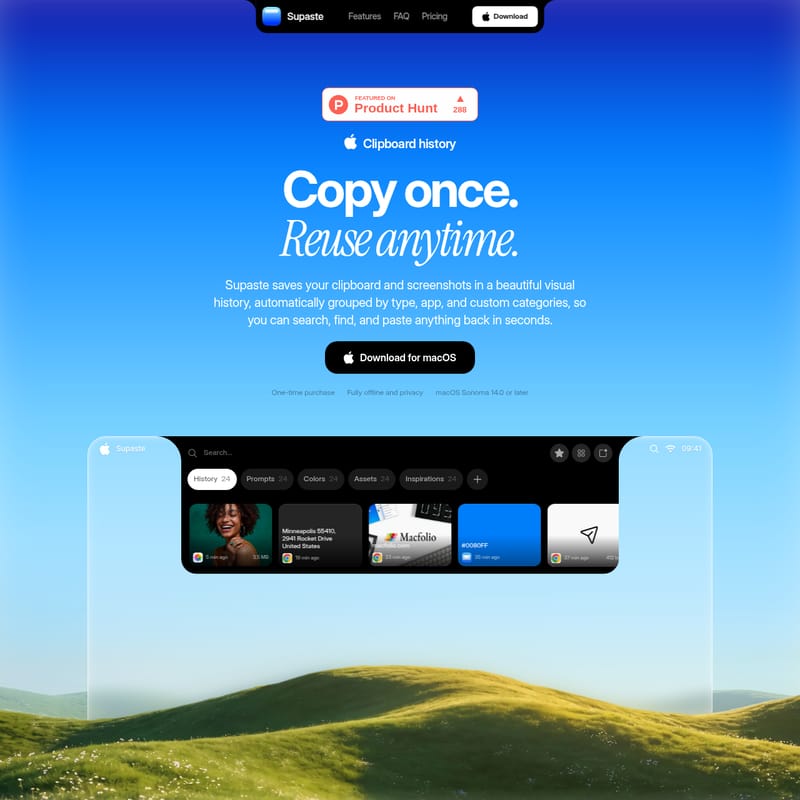
In the fast-paced digital workspace, the standard clipboard is often a bottleneck. We copy, we paste, and then we copy something else—losing the previous information forever. Supaste changes this dynamic entirely. Supaste is a powerful macOS application designed to save your clipboard and screenshots in a beautiful, visual history. By automatically grouping your data by type, app, and custom categories, Supaste allows you to search, find, and reuse anything you have ever copied in a matter of seconds.
What's Supaste?
Supaste is more than just a simple clipboard manager; it is a comprehensive productivity hub for macOS users. Built specifically for macOS Sonoma 14.0 or later, it functions as a visual library for every piece of data that passes through your clipboard. Whether it is a snippet of code, a brand color hex, a high-resolution screenshot, or a simple text link, Supaste captures it all.
The philosophy behind Supaste is "Copy once, reuse anytime." It emphasizes a local-first and privacy-first approach, ensuring that your data stays on your machine. With its native macOS integration, Supaste provides a seamless experience that feels like a natural extension of the operating system, complete with widgets, menu bar access, and an innovative notch shelf.
Core Features of Supaste
Supaste is packed with features designed to eliminate the friction of switching between apps and searching for lost snippets.
Visual Clipboard Library and History
Traditional clipboard managers often provide a dry list of text. Supaste revolutionizes this with a clean visual timeline. You can open the full Library window to browse, manage, and reuse saved items including text, links, screenshots, images, code, colors, files, and assets. This visual approach makes it significantly easier to identify the exact item you need at a glance.
The Innovative Notch Shelf
One of the standout features of Supaste is the notch shelf. This feature allows you to keep your most useful clips right at the top of your Mac screen. You can drag images, assets, text, colors, SVG icons, screenshots, and files directly from the notch into any application. This eliminates the need to open another window or switch context, keeping you in your creative flow.
Quick Search and Inline Paste
Supaste includes a quick search functionality that allows you to find anything in your history instantly. Use the inline paste feature to insert content directly where you are working. By pressing Control + Command + V, you can open Supaste in any app, search your clipboard, templates, or saved items, and paste them immediately.
Intelligent Organization and Custom Categories
Organization is at the heart of the Supaste experience. The app allows you to create Custom Categories, which are dedicated spaces for specific projects, templates, brand assets, or everyday snippets. You can organize your email replies, logos, icons, and text blocks into specialized folders, making them incredibly easy to find and reuse.
Advanced Filtering by App and Type
Finding a specific clip is effortless with Supaste's filtering system. You can filter your history by the application it originated from—such as Safari, Figma, Slack, Xcode, or Mail. Additionally, you can browse by content type, including:
- Text and Links
- Screenshots and Images
- Files and Assets
- Code snippets
- Colors and SVG icons
Privacy and Sensitive Content Detection
Supaste is built with security in mind. It is fully offline, meaning your clipboard history is stored locally on your device and never uploaded to external servers. Furthermore, the app includes sensitive detection to help manage and protect private information that you may have copied.
How to Use Supaste
Integrating Supaste into your daily workflow is simple and intuitive. Here is how you can maximize your efficiency with the app:
- Capturing Content: Simply copy items as you normally would. Supaste automatically saves text, images, and screenshots into your visual history.
- Accessing the Library: Press Control + Command + V in any application to bring up the Supaste interface instantly.
- Using Shortcuts: For even faster access, use the shortcut Control + Command + 0–9 to bring back your last 10 clips (links, images, code, or files) without opening a single window.
- Drag and Drop: Utilize the notch shelf at the top of your screen. Click and drag any asset directly from the shelf into your project or document.
- Organizing: Open the full Library view to move clips into Custom Categories or filter by app type to clean up your history.
Comprehensive Use Cases
Supaste is a versatile tool that caters to various professional and personal needs:
Supaste for Designers
Designers can use Supaste to keep colors, icons, screenshots, SVGs, and visual references close at hand. The beautiful, searchable shelf allows for quick access to assets while working in design tools like Figma.
Supaste for Developers
Developers can automate the saving of code snippets, terminal commands, error logs, JSON data, and API responses. Supaste makes it easy to find and paste these technical details back into Xcode or other IDEs whenever they are needed.
Supaste for Content and Marketing
Marketing professionals can capture hooks, taglines, SEO keywords, and campaign ideas. It is an excellent tool for saving research links and draft snippets before they are lost from the clipboard.
Supaste for Sales and Support
Sales and support teams can store and reuse their best replies, email templates, and product links. This avoids the need to dig through old conversations to find frequently used information.
Supaste for Founders and Operators
Founders can organize investor notes, competitor screenshots, and pricing research in one centralized visual history, ensuring that important strategic data is always accessible.
Supaste for Personal Productivity
For everyday use, Supaste is perfect for finding copied addresses, tracking numbers, recipes, quotes, and links that you meant to save but forgot to bookmark.
Frequently Asked Questions (FAQ)
What is Supaste? Supaste is a macOS application that saves your clipboard and screenshot history, allowing you to organize, search, and reuse copied items through a visual interface.
Where is my clipboard history stored? Your history is stored locally on your Mac. Supaste is a local-first application designed for maximum privacy.
Does Supaste upload my copied content? No. Supaste is fully offline and privacy-focused. Your data remains on your device.
What types of content does Supaste support? It supports a wide range of content, including text, links, screenshots, images, code snippets, colors, SVG icons, and various file types.
Can I search my clipboard history? Yes, Supaste features a powerful search function that allows you to find any saved item in seconds.
Is Supaste a subscription? No, Supaste is available for a one-time purchase. There are no recurring subscription fees, and lifetime updates are included.
What are the system requirements? Supaste requires macOS Sonoma 14.0 or later to run as a native app.