AI Video Editor
AI Video Editor: The Ultimate Solution for Professional Visual Style Changes, Object Removal, and Product Recoloring
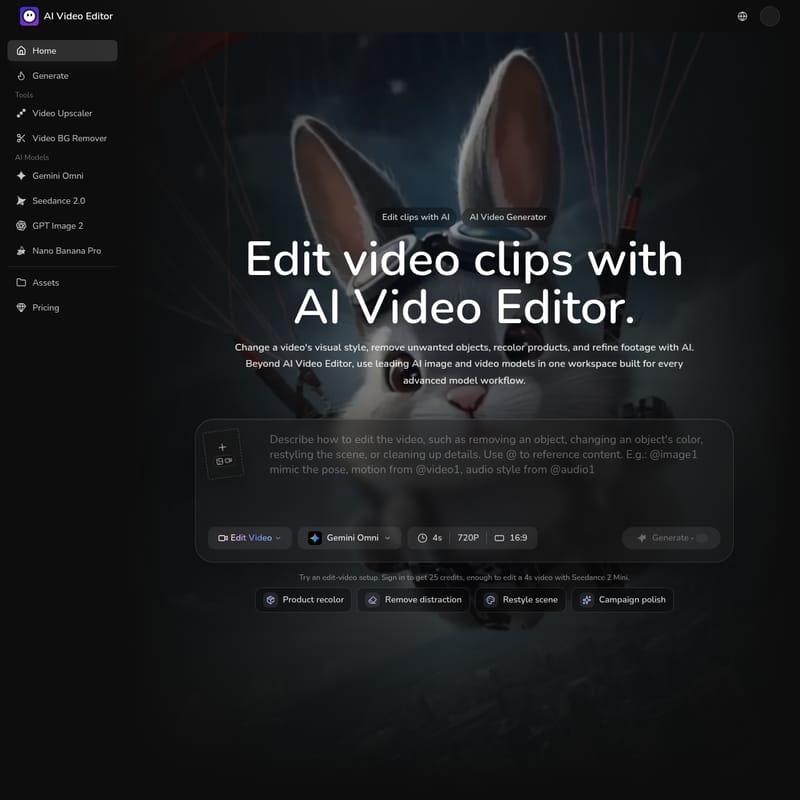
AI Video Editor is a comprehensive production workspace designed for creative teams to edit video clips using advanced AI models. It enables seamless visual style transformations, precise object removal, and believable product recoloring through natural language prompts. By integrating powerful models like Gemini Omni and Seedance 2.0, AI Video Editor streamlines workflows for growth marketers, ecommerce brands, and content creators, allowing for efficient asset iteration and high-quality production refinements without the need for expensive reshoots.
2026-07-18
--K
AI Video Editor Product Information
AI Video Editor: Revolutionizing Video Production with AI-Powered Edits
In the rapidly evolving world of digital content, the AI Video Editor stands out as a transformative tool for creators and production teams. Whether you need to change a video's visual style, remove unwanted objects, or recolor products for a new campaign, the AI Video Editor provides a comprehensive workspace built for advanced model workflows. By leveraging leading AI models, this platform allows users to refine footage, extend shots, and polish assets with unprecedented ease and precision.
What's AI Video Editor?
AI Video Editor is an advanced creative production workspace that allows users to edit real video clips using direct AI instructions. It is not just a simple editing tool; it is a holistic environment where you can access multiple AI models, such as Gemini Omni, Seedance 2.0, and GPT Image 2, all in one place.
The core purpose of the AI Video Editor is to bridge the gap between rough footage and professional-grade outputs. It enables users to upload source clips and describe exactly what needs to change—whether it’s swapping a background, changing the weather, or updating a product’s color. The AI Video Editor ensures that while specific elements change, the rest of the clip—including camera motion, lighting, and framing—remains perfectly anchored and consistent.
Key Features of AI Video Editor
The AI Video Editor is packed with features designed to handle complex editing tasks that would traditionally take hours of manual labor. Here are the primary capabilities of the platform:
1. Product Color Refresh
One of the most powerful features of the AI Video Editor is the ability to recolor products inside a clip. This allows ecommerce teams to test new SKU directions or update product visuals to match current inventory without the need for a total reshoot. The AI ensures the lighting remains believable, maintaining the integrity of the original footage.
2. Visual Style Change
The AI Video Editor can transform the entire look of your footage. You can turn a standard commercial clip into cinematic, anime, or brand-specific aesthetics while preserving the core action and subject performance. This is ideal for repurposing content across different platforms and audiences.
3. Precision Object Removal
Whether it's a distracting background element, a watermark, or an unwanted brand logo, the AI Video Editor features a robust object removal pass. It patches unwanted details so the shot stays focused on the subject, keeping the original framing and motion intact.
4. Natural Language Editing
With the AI Video Editor, you can edit anything using simple sentences. By describing the desired changes—such as changing the environment, weather, or even a character's age—the AI applies the instruction while the rest of the clip holds together seamlessly.
5. Multi-Model Integration
Beyond video editing, the AI Video Editor workspace provides access to specialized models:
- Gemini Omni: For editing source clips and generating new video from prompts.
- Seedance 2.0: For creating controlled motion and extending shots.
- GPT Image 2: For image edits and product recolors with up to 16 references.
- Nano Banana Pro: For refining visual directions into sharp 4K outputs.
How to Use AI Video Editor
Editing your footage with the AI Video Editor is a straightforward, prompt-driven process. Follow these steps to transform your clips:
- Upload Your Footage: Start by bringing your source clip into the AI Video Editor workspace. Rough footage is acceptable as long as the subject is visible.
- Describe Your Edit: Use the chat interface to direct the AI. You can describe changes like removing an object, changing colors, or restyling the scene.
Example Prompt: "Replace the pasta bowl with Tom Yum soup. Preserve the camera move, lighting, and natural steam."
- Reference Specific Assets: Use the
@symbol to reference existing images, video, or audio for style and motion consistency. For instance, you can reference@image1to mimic a specific pose or color palette. - Refine and Generate: Select your preferred AI model (e.g., Gemini Omni) and duration, then hit generate. If the first pass isn't perfect, adjust your prompt or add a clearer reference image to guide the AI Video Editor.
- Save to Library: All finished outputs and generated assets are saved to your library for future use as references in subsequent creative passes.
Use Cases for the AI Video Editor
Different teams can utilize the AI Video Editor to solve specific production bottlenecks:
Growth Marketers
Marketers use the AI Video Editor for paid social and regional creative refreshes. When a product color changes or a background becomes distracting, they can quickly edit the source clip and generate variants for different channels without booking a new production pass.
Creative Teams
For art direction and agency pitches, the AI Video Editor helps explore style changes and scene repairs. By attaching reference images directly to prompts, teams ensure that each AI edit aligns with the brand's visual language rather than starting from a blank text box.
Ecommerce Teams
Ecommerce professionals rely on the AI Video Editor for product launches and seasonal updates. They can recolor products to match new SKUs, create packshot backgrounds, and adapt hero footage for storefronts and marketplaces with high accuracy.
Content Creators
Creators use the AI Video Editor to recover edits and create b-roll. Whether it's removing a logo or extending a scene to fit a specific social media format, the tool turns existing footage into sharper, social-ready ideas.
FAQ
Q: What can I change in a video clip using the AI Video Editor?
A: You can restyle footage, remove unwanted objects (including watermarks), recolor products, clean up scene details, and extend shots using natural language prompts.
Q: When should I add a reference image in the AI Video Editor?
A: It is best to use a reference when you have a specific visual goal, such as a particular product color, material, lighting style, or brand mood.
Q: Do I need professional-grade footage to start?
A: No. Rough footage is fine as long as the camera movement isn't too chaotic. Clearer footage simply provides a better starting point for the AI Video Editor models.
Q: What happens if a generation fails?
A: If a generation attempt fails or returns an error within the AI Video Editor, the credits used for that attempt are automatically returned to your account.
Q: Can I use the outputs from AI Video Editor commercially?
A: Yes. Paid users retain ownership of their outputs and may use them commercially, even after their paid period ends, subject to third-party rights and provider policies.
Q: Is the AI Video Editor only for video?
A: While video editing is the main workflow, the workspace also supports image generation, product recolors, and thumbnail creation using models like GPT Image 2 and Nano Banana Pro.