OpenScreen 2
OpenScreen 2 is an open-source, local-first screen recorder and video editor for Windows, macOS, and Linux.
VideoNative capture via macOS…Aspect ratio reframingRedaction with smooth or mosaic blur…Non-destructive text-based editing to…
OpenScreen 2 is an open-source, local-first screen recorder and video editor for Windows, macOS, and Linux.
What the product does and how it is positioned
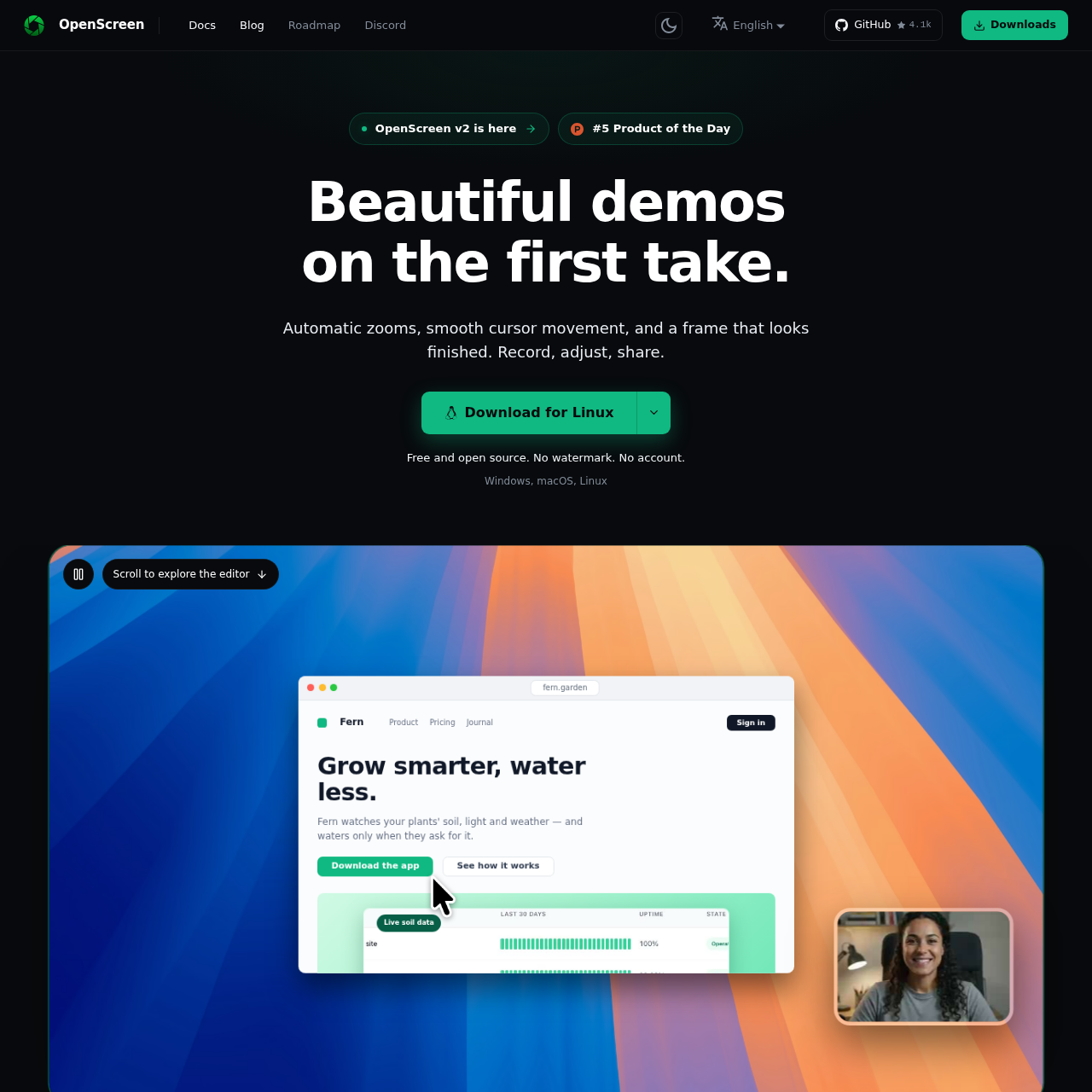
OpenScreen 2 is a cross-platform desktop application designed for creating polished product demonstrations and tutorials. It captures display activity natively via ScreenCaptureKit on macOS, Windows Graphics Capture on Windows, and PipeWire on Linux, keeping cursor data isolated from screen pixels so movements, sizing, and styling can be modified retroactively.
The tool operates entirely on local hardware, offering automatic click-driven camera zooms, non-destructive transcript editing powered by an offline Whisper speech model, and webcam background segmentation. All rendering to MP4 or GIF takes place on-device without cloud services, mandatory accounts, or watermarks.
Source-supported ways to use the product
Record application workflows with automatic click-centered zooms, 3D camera angles, and device frames without manual keyframing.
Convert horizontal recordings into vertical or square aspect ratios such as 9:16 or 1:1 for distribution across multiple platforms.
Capture internal interfaces and obscure confidential keys, emails, or credentials using freehand, rectangular, or mosaic blur regions.
Record, transcribe, and render screen capture footage on air-gapped or private machines without transmitting media off-premises.
The documented workflow, where available
Select a display or window alongside system audio and optional webcam inputs to record native video and separate cursor telemetry.
Apply device frames, animated or static wallpaper backgrounds, shadows, corner roundness, cursor packs, and 3D camera angles.
Refine automatic zoom pills, add trims or speed ramps, and delete unwanted words or silence markers directly in the text transcript.
Select the target aspect ratio, resolution up to source, and frame rate, then render directly to an MP4 or GIF file on disk.
OpenScreen 2 interfaces directly with host operating system graphics APIs rather than relying on generic recording overlays. On macOS, the app uses ScreenCaptureKit; on Windows, it uses Windows Graphics Capture; and on Linux, it records via PipeWire and the ScreenCast portal. This system integration allows OpenScreen 2 to record system audio without supplemental drivers while keeping pointer movement data separated from the video raster.
Because the pointer is tracked as coordinate data rather than baked into screen pixels, users can restyle the cursor post-capture. The editor allows operators to change cursor dimensions, apply smoothing, adjust motion blur, add click bounce animations, swap between five custom cursor visual packs, or render the pointer as a 3D element with dynamic shadows.
Checks to run with your own material and workflow
What was checked and when
Answers based on the source-checked product record
No, recording, editing, transcription, and rendering operate entirely locally on your device without an active internet connection once installed and set up.
Video and audio never leave your local computer; network requests occur only if you supply an API key to run caption translation or the AI agent.
The software bundles whisper.cpp, which downloads a 264 MB model once on first use and processes audio locally across 100 languages without sending data off-device.
OpenScreen 2 exports to MP4 using the H.264 codec from 720p up to source resolution at 24, 30, or 60 frames per second, as well as GIF format.
No, the software is free, open source under the MIT license, and exports all video without watermarks, paywalls, or usage limits.