YouTube TV Custom Multiview
YouTube TV Custom Multiview: Build Your Own Live Stream Layouts with Full Multiview Customization
Discover the latest YouTube TV Custom Multiview update, featuring the new multiview builder. Learn how to mix and match live content from your YouTube TV Plan and NFL Sunday Ticket, use filter chips to organize sports, news, and movies, and enjoy full customization of your live TV viewing experience on supported living room and mobile devices.
2026-05-04
84940200.0K
YouTube TV Custom Multiview Product Information
YouTube TV Custom Multiview: Build Your Own Live Stream Layouts with Full Multiview Customization
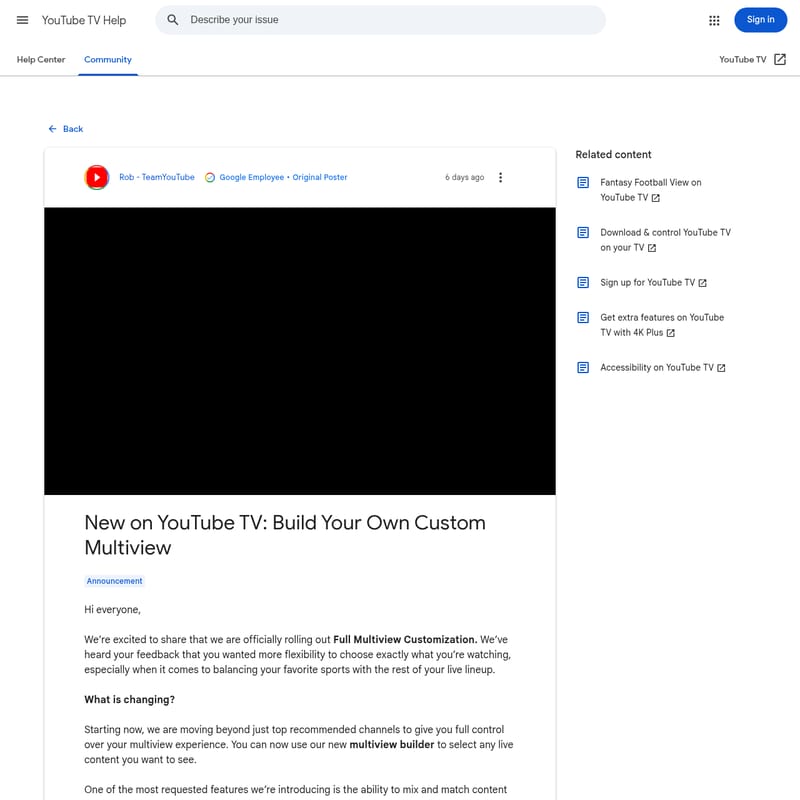
YouTube TV has officially announced a significant update for its subscribers: the rollout of Full Multiview Customization. This new feature represents a major shift in how viewers interact with live television, moving from predefined layouts to a user-centric experience powered by the new YouTube TV multiview builder. Whether you are a dedicated sports fan or a news enthusiast, the YouTube TV Custom Multiview feature offers the flexibility and control needed to manage your live lineup more effectively than ever before.
What’s YouTube TV Custom Multiview?
YouTube TV Custom Multiview is an advanced feature designed to provide users with total control over their viewing experience. In the past, multiview on YouTube TV was largely limited to "top recommended" channels curated by the platform. With this latest update, YouTube TV is moving beyond these limitations to provide full multiview customization.
This means that instead of relying on preset selections, you can now use the multiview builder to select exactly what you want to watch. This feature is specifically tailored for live content, allowing you to balance multiple streams simultaneously on a single screen. This is particularly useful for users who need to keep an eye on various live events, such as different sports games, breaking news stories, or live entertainment programs, all at the same time.
Features of the New Multiview Builder
The introduction of the multiview builder brings several high-demand features to the YouTube TV platform. These features are designed to enhance flexibility and make it easier for subscribers to navigate their live content library.
1. Full Multiview Customization
Users are no longer restricted to what the algorithm suggests. The multiview builder allows you to hand-pick the live streams you want to include in your multiview layout. This level of full customization ensures that your screen reflects your personal preferences and viewing priorities.
2. Mix and Match Across Packages
One of the most requested features now available in the YouTube TV Custom Multiview is the ability to mix and match content across different subscriptions. If you have a standard YouTube TV Plan and an add-on like NFL Sunday Ticket, you can now combine streams from both into a single multiview window. This integration is a game-changer for sports fans who want to watch local games alongside out-of-market games provided through NFL Sunday Ticket.
3. Streamlined Filter Chips
To help you find content quickly, the multiview builder includes an updated flow featuring filter chips. These chips allow you to browse specific categories of live content, including:
- Recommended: Personalized selections based on your unique viewing habits.
- Sports: Quick access to all active live sporting events.
- News: Stay updated with multiple live news broadcasts simultaneously.
- Shows: Find live episodes of your favorite programs.
- Movies: Access live cinema broadcasts currently airing.
- Other live content: A catch-all for any other live streams available in your lineup.
How to Use the YouTube TV Multiview Builder
Using the new YouTube TV multiview builder is a straightforward process designed for both living room and mobile devices. Follow these steps to start your custom multiview session:
- Start a Multiview: Begin by launching a multiview session from your YouTube TV home screen.
- Access the Builder: Once the multiview starts, you will see the updated builder flow.
- Use Filter Chips: Select from the available filter chips (Sports, News, Recommended, etc.) to narrow down your content choices.
- Select Your Content: Choose the specific live streams you want to see on your screen.
- Configure the Layout: Once your selections are made, the builder will configure the streams into a single, cohesive multiview experience.
Use Case Scenarios for Custom Multiview
The YouTube TV Custom Multiview feature is versatile and caters to various viewing habits. Here are a few ways you can utilize full multiview customization:
- The Ultimate Game Day: Use the builder to select four different football games. By mixing your YouTube TV Plan channels with NFL Sunday Ticket streams, you can ensure you never miss a play from your favorite team or your fantasy roster.
- Breaking News Coverage: During major events, use the News filter chip to select multiple news outlets. This allows you to compare coverage and stay informed from multiple perspectives in real-time.
- Sports and Entertainment Balance: If there is a big game on but you also want to catch a live award show or movie, you can configure those streams together so you don't have to flip back and forth between channels.
Content Eligibility and Device Compatibility
While the YouTube TV Custom Multiview is a powerful tool, there are specific guidelines regarding content eligibility and the devices that support this feature.
Content Eligibility
- Live Content Only: Multiview is strictly designed for live content. Currently, Video on Demand (VOD) and DVR recordings cannot be added to a custom multiview layout.
- Family Friendly Content: Certain family-friendly content is not eligible for use within the multiview builder at this time.
Device Compatibility
YouTube TV is rolling out this feature to the vast majority of living room and mobile devices. However, there are exceptions:
- Older Devices: Approximately 5% of older devices may not support the full customization user experience (UX).
- Tentpole Events: If you are using an older, unsupported device, you will still have access to a version of the multiview builder, but it will be limited to major "tentpole" events like the NFL or the World Cup.
FAQ
Q: Can I use YouTube TV Custom Multiview for recorded shows? A: No. The YouTube TV Custom Multiview feature and the multiview builder are designed exclusively for live content. DVR and VOD content are currently ineligible.
Q: How do I get the new multiview builder? A: YouTube TV is ramping this feature out to all users over the coming weeks. If you do not see the custom builder yet, it is on the way and should be available on your device soon.
Q: Can I combine NFL Sunday Ticket with regular live TV? A: Yes! One of the key updates in the full multiview customization rollout is the ability to mix and match content from your YouTube TV Plan with add-ons like NFL Sunday Ticket.
Q: Will this work on my mobile phone? A: Yes, the feature is rolling out to the vast majority of mobile devices in addition to living room devices.
Q: Why can't I see the full customization options on my older TV? A: A small subset of older devices (less than 5%) does not support the full customization UX. On these devices, you will only have access to multiview for major events like the World Cup or NFL.