AI Image to Layers separates flat images into movable PNG layers for composition changes, asset downloads, and visual preparation.
Image GeneratorSeparates images into a background and…Provides an interactive workspaceExports individual layer assets or the…AI layer separationimage to layersAI image layer separatorimage layer separationimage to layers convertersplit image into layers
Listed on AIToolly
What Is AI Image to Layers? Product Overview
What the product does and how it is positioned
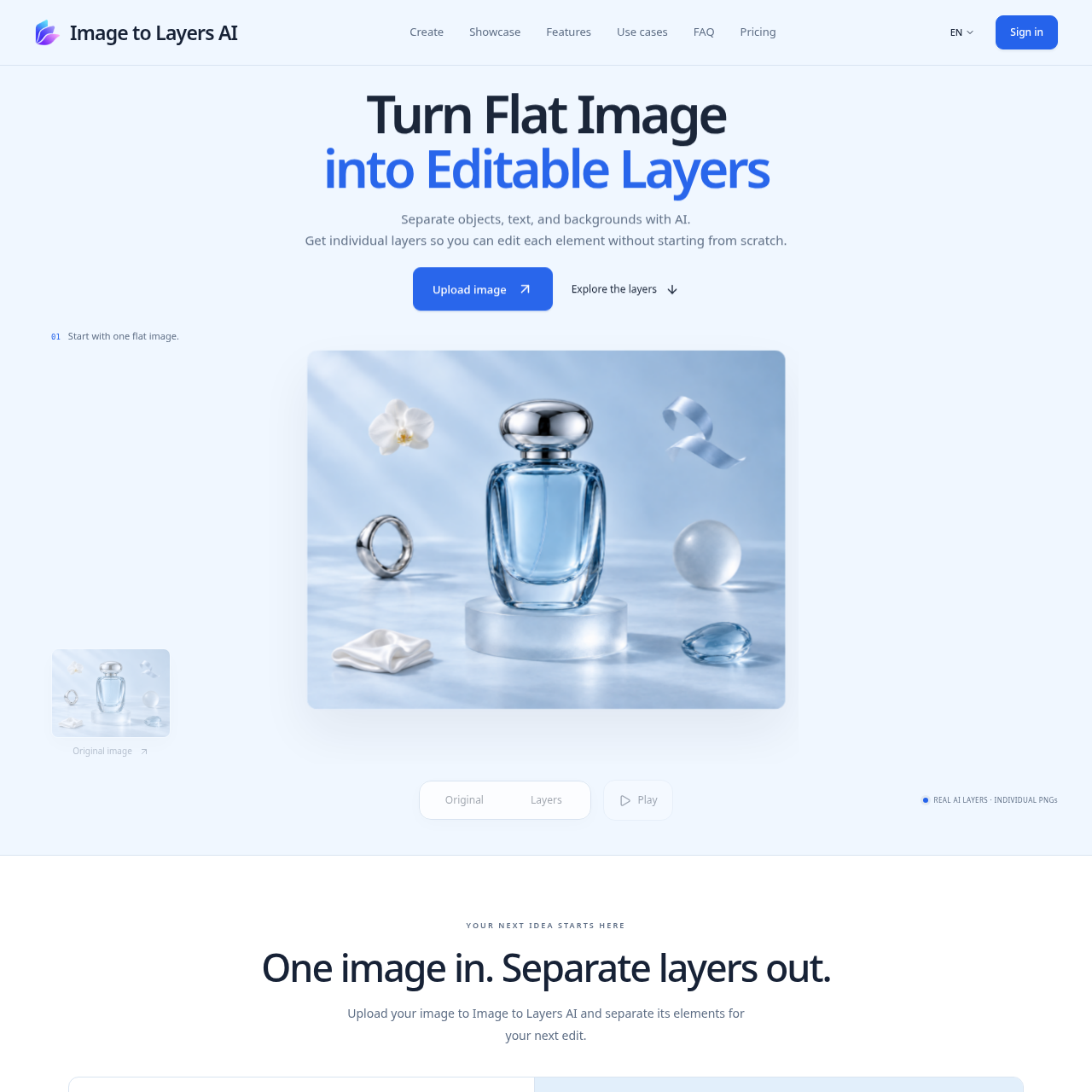
Image to Layers AI is an online tool that separates flat images into independent PNG layers using AI. Upload a JPG, PNG, or WebP image, optionally describe the elements you want to separate, and work with the resulting objects and background in your browser. Move, hide, rename, and reorder layers to explore new compositions. Download individual PNGs, export all layers as a ZIP, or save the visible composition as one image. It is useful for product visuals, marketing campaigns, collages, and animation preparation.
AI Image to Layers is a web-based tool for separating a flat image into a background and independent PNG elements.
Its workspace supports basic layer organization and composition changes, while the FAQ notes that results remain raster images rather than editable text or vector objects.
What Can You Use AI Image to Layers For?
Source-supported ways to use the product
Product imagery
Separate products and surrounding elements to create new product-image settings.
Campaign and social visuals
Recompose separated elements for alternate campaign or social-media visuals.
Illustration and collage
Move independent elements into different arrangements for illustration and collage work.
Motion preparation
Prepare separate image elements for layered animation workflows.
How to Use AI Image to Layers
The documented workflow, where available
1
Upload an image
Provide a JPEG, PNG, or WebP image that meets the documented upload limits.
2
Let AI find the layers
The AI separates the image into a background and independent elements.
3
Adjust the composition
Hide, reorder, rename, and move layers in the workspace.
4
Download the result
Download individual PNG assets, all layers in a ZIP, or the visible composition as a PNG.
Layer separation and editing scope
The product distinguishes layer separation from a simple cutout by creating a background and multiple independent elements. Its editing controls focus on visibility, stacking order, naming, and movement rather than pixel-level or vector editing.
AI may reconstruct areas hidden behind subjects.
Each layer uses the result's full canvas size to preserve placement.
The download-all option includes every layer, including hidden layers, and a composition manifest.
AI Image to Layers Pricing
Human-maintained commercial information
subscriptionpaid
USD 19.9/month
Pricing can change. Confirm the current plan and billing terms on the official site before purchasing.
What to Test Before Choosing AI Image to Layers
Checks to run with your own material and workflow
Confirm the source image is JPEG, PNG, or WebP and meets the documented size, pixel, and aspect-ratio limits.
Review reconstructed areas around overlaps, text, and fine edges before using the result.
Verify that raster PNG layers meet the intended editing workflow because vector and text editing are not included.
Check whether the available layer count is sufficient for the composition, since the model determines it.
Answers based on the source-checked product record
What does AI Image to Layers do?+
It uses AI to separate an image into a background and independent PNG elements that can be hidden, reordered, moved, and downloaded.
Which image formats can be uploaded?+
The documented upload formats are JPEG, PNG, and WebP. Files must also meet the stated size, pixel-count, and aspect-ratio limits.
How many layers does an image produce?+
The model determines the result based on the image and any optional instructions. The documented total can range from two to 17 layers.
Can individual layers be edited as text or vectors?+
No. The layers are raster PNG images. The documented workspace supports visibility, stacking order, renaming, and movement, but not text or vector editing.
Can the result differ from the original image?+
Yes. AI may reconstruct hidden areas and reinterpret details, so results can differ from the original, especially around overlaps, text, and fine edges.
More Image Generator AI tools
Explore other recently added tools in the same category.