Raybeam
Raybeam: The Ultimate Custom Region Screen Sharing App for macOS 14+
Raybeam is a powerful macOS application designed for precise screen sharing. It allows users to share custom, resizable regions of their screen on platforms like Zoom and Teams while offering privacy through hidden apps and real-time drawing tools.
2026-05-18
--K
Raybeam Product Information
Raybeam: The Premier macOS Solution for Custom Region Screen Sharing
In the modern era of remote work and digital collaboration, the ability to communicate visual information effectively is paramount. While standard video conferencing tools offer basic screen sharing capabilities, they often lack the precision required for professional workflows. Raybeam is a dedicated macOS application designed to bridge this gap, offering a draggable, resizable region of your screen for sharing exactly what you want, when you want.
Built specifically for macOS 14+, Raybeam provides a sophisticated third path for screen sharing that sits between sharing your entire display and sharing a single application window. Whether you are using an ultra-wide monitor or a complex multi-monitor setup, Raybeam ensures that your audience sees only the content that matters.
What's Raybeam?
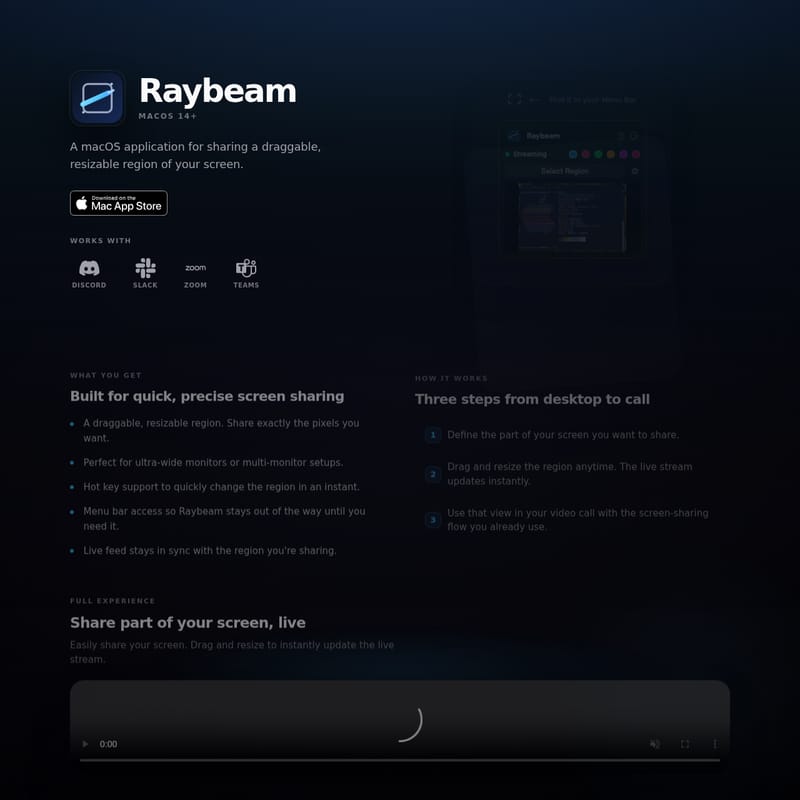
Raybeam is a robust macOS utility that allows users to define a custom, live-synced rectangular region on their desktop to be shared during video calls. It is a menu bar application that remains unobtrusive until needed, providing a seamless interface for capturing specific pixels on your screen.
Compatible with both Apple Silicon and Intel architectures, Raybeam is engineered for performance and precision. It works harmoniously with the most popular communication platforms, including:
- Discord
- Slack
- Zoom
- Teams
By creating a live feed of a specific screen area, Raybeam empowers users to maintain control over their digital environment while presenting professional, focused content.
Key Features of Raybeam
Raybeam is packed with features designed to enhance the quality of your screen sharing sessions and protect your privacy.
Draggable and Resizable Regions
At its core, Raybeam provides a flexible rectangle that you can place anywhere on your Mac. This region is fully resizable and draggable, allowing you to share a specific portion of a window, a combination of multiple windows, or a custom band across an ultra-wide monitor. The live stream updates instantly as you adjust the frame.
Hidden Apps for Privacy
One of the standout features of Raybeam is the Hidden Apps functionality. This tool allows you to select specific applications that should never appear within your shared region. If a hidden app window moves into the capture area, its pixels are automatically replaced by whatever is behind it on your desktop. This is an essential feature for keeping personal chats, sensitive documents, or private notifications off the live stream.
Real-Time Drawing and Annotation
Raybeam includes a dedicated draw mode that turns your capture region into an interactive canvas. You can sketch freehand directly on top of the live capture. These marks are "baked" into the stream, ensuring that everyone on the call sees your annotations in real-time, making it perfect for highlighting specific data points or brainstorming.
Global Hotkeys and Menu Bar Access
Efficiency is built into the Raybeam experience. Users can register global keyboard shortcuts to:
- Pick a new region instantly.
- Toggle draw mode on and off.
- Stop streaming without needing to open the main panel.
Furthermore, Raybeam lives in your Menu Bar (near the clock and Wi-Fi indicators), ensuring that its controls are always just a click away without cluttering your workspace.
How to Use Raybeam
Raybeam simplifies the journey from your desktop to a professional video call in three easy steps:
- Define Your Region: Select the specific part of your screen that you wish to share. You can draw any rectangle that spans across multiple windows or focuses on just a portion of one.
- Adjust on the Fly: During your session, you can drag and resize the region handles anytime. The live stream updates instantly, providing a dynamic viewing experience for your audience.
- Share in Your App: Use your preferred video call application (like Zoom or Teams). When prompted to share your screen, select the Raybeam live view as your source, just as you would any other window.
Use Cases for Raybeam
Raybeam is versatile enough to handle a variety of professional and creative scenarios:
- Ultra-Wide Monitors: Instead of sharing a massive, unreadable screen, use Raybeam to share a standard 16:9 region in the center of your display.
- Multi-Monitor Setups: Capture a region that spans across different displays or focus on a specific workflow across two apps.
- Focused Presentations: Share only the "content" area of a complex software interface, hiding the toolbars and sidebars that might distract your audience.
- Privacy-Conscious Sharing: Use the Hidden Apps feature to ensure that even if a private notification pops up, it remains invisible to your viewers.
Comparing Raybeam vs. Traditional Screen Sharing
Traditional screen sharing usually offers two limited choices. Raybeam adds a superior third option:
Traditional · Display Sharing: Shares everything on one display, including the menu bar and notifications. While fast, it often shows too much information and lacks focus.
Traditional · Window Sharing: Shares one specific app window. However, this is awkward if you need to show two apps simultaneously or if you only want to share a specific part of a window.
With Raybeam: You get a Custom Region. This live rectangle can span multiple windows or a portion of one. Your meeting app treats this region like any other shared source, but you maintain total control over the crop and composition.
Privacy and Security Permissions
Because Raybeam mirrors pixels from your screen, macOS requires explicit Screen Recording permission. This is a standard security measure by Apple to ensure you are in control of your data.
- Minimal Capture: Raybeam only captures the pixels inside the region you define. It does not record your full display unless you specifically resize the region to cover the whole screen.
- User Control: You can review or revoke these permissions at any time via System Settings → Privacy & Security → Screen Recording.
- Trust: Raybeam is built to keep you in control. You can adjust the shared area or stop the stream entirely from the menu bar at any moment.
FAQ
Does Raybeam capture my whole screen?
No. By default, you only share the specific rectangular region you set. While you can resize the region to cover the entire display if you choose, the size of the capture area is always under your control.
Which video apps does it work with?
Raybeam is compatible with any meeting app that uses normal screen-sharing controls. It provides a live region on your Mac that you select as a source in apps like Zoom, Slack, Teams, and Discord.
Why does macOS ask for screen recording permission?
Apple requires this permission for any application that reads pixels from the screen. Raybeam uses this access strictly to build the specific region you have selected for sharing.
Can I move the region while I’m on a call?
Yes. One of the primary benefits of Raybeam is the ability to drag and resize the region handles in real-time. The shared view updates instantly without you having to leave or restart the call.
Where do I find Raybeam after I install it?
Raybeam is a menu bar application. After launching, look for the Raybeam icon in the top right of your screen, near the clock and Wi-Fi indicators. All controls are accessible from that menu.