The Virtual OS Museum
The Virtual OS Museum: A Comprehensive 1,700+ Operating System Emulation Archive
The Virtual OS Museum is a massive digital preservation project featuring over 1,700 pre-installed operating systems. Running as a Linux VM for QEMU, VirtualBox, or UTM, it offers a custom launcher for exploring computing history from 1948 to the present.
2026-06-10
118.0K
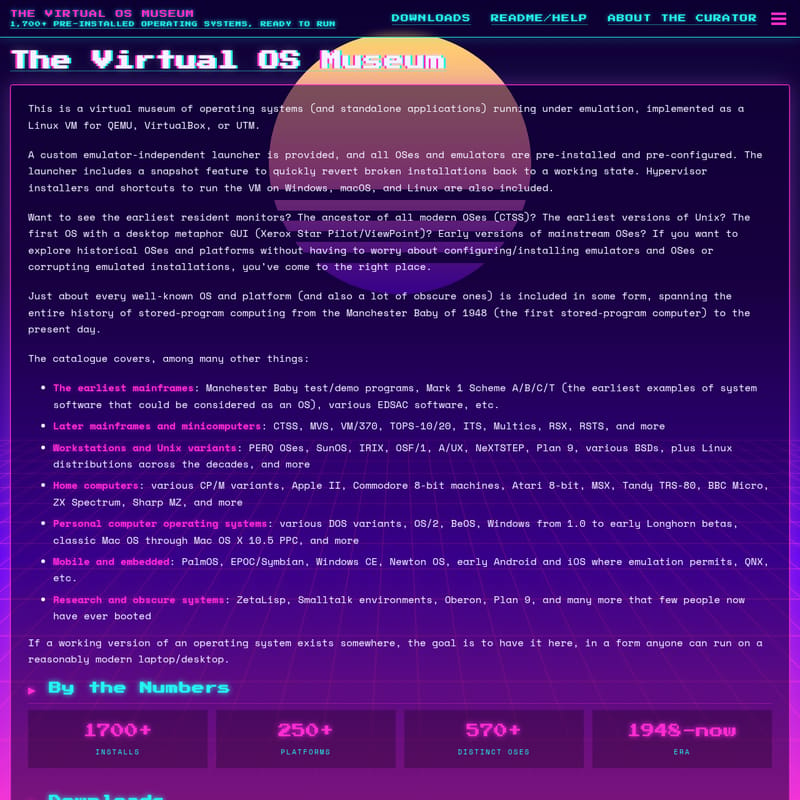
The Virtual OS Museum Product Information
The Virtual OS Museum: The Ultimate Digital Archive of Computing History
In the rapidly evolving world of technology, the history of computing is often lost to time and incompatible hardware. The Virtual OS Museum serves as a vital bridge to the past, offering a curated, massive collection of over 1,700 pre-installed operating systems and standalone applications. This project is not merely an archive; it is a living, functional virtual museum implemented as a Linux VM designed for modern environments like QEMU, VirtualBox, and UTM.
Whether you are a historian, a developer, or a retro-computing enthusiast, The Virtual OS Museum provides an unprecedented opportunity to explore the evolution of software. Spanning the entire history of stored-program computing—from the Manchester Baby of 1948 to modern-day systems—this museum ensures that the digital ancestors of our current technology remain accessible and runnable on modern hardware.
What is the Virtual OS Museum?
The Virtual OS Museum is a comprehensive virtual museum of operating systems and standalone applications running under emulation. It is delivered as a pre-configured Linux Virtual Machine (VM) that eliminates the technical barriers typically associated with vintage software preservation. Unlike traditional archives that provide raw disk images, The Virtual OS Museum focuses on immediate accessibility.
At its core, the project features a custom, emulator-independent launcher. This launcher serves as the primary interface, allowing users to browse and execute hundreds of different platforms without worrying about complex configuration files or host environment dependencies. Every OS within The Virtual OS Museum has been pre-installed and pre-configured, meaning the work of setting up device drivers, memory layouts, and boot sequences is already done.
"This project is an attempt to keep reachable as much of the history that’s been preserved in various places as possible. Not theoretically reachable... Reachable. You click an entry, it runs."
Key Features of the Virtual OS Museum
The Virtual OS Museum stands out due to its meticulous curation and user-friendly design. Here are the primary features that make it an essential tool for software preservation:
1. Massive Installation Library
With over 1,700+ installs and 570+ distinct operating systems, the sheer scale of the project is unmatched. It covers more than 250+ platforms, ranging from the earliest mainframes to modern mobile operating systems.
2. Custom Emulator-Independent Launcher
The museum includes a bespoke launcher that manages the various emulators required for different architectures. This system includes a snapshot feature, allowing users to quickly revert a broken or corrupted installation back to a fresh, working state with a single click.
3. Cross-Platform Support
The Virtual OS Museum is designed to be versatile. It includes hypervisor installers and shortcuts to run the VM on Windows, macOS, and Linux, ensuring that anyone with a modern laptop or desktop can explore the collection.
4. Full and Lite Editions
To accommodate different storage needs, the project is offered in two versions:
- Full Version: Comes with all disk and tape images pre-downloaded for offline use.
- Lite Version: Downloads specific guest VM images on-demand the first time they are run. Both editions support automatic and manual updates, ensuring new installations are added without requiring a full re-download of the entire VM.
The Extensive Catalog of the Virtual OS Museum
The depth of The Virtual OS Museum is breathtaking, covering every major era of computing. The catalog includes:
Mainframes and Minicomputers
Explore the foundations of computing with the Manchester Baby (1948), the first stored-program computer. The museum also features CTSS (the ancestor of modern OSes), MVS, VM/370, Multics, and early versions of Unix.
Workstations and Unix Variants
Dive into the power of legendary workstations with SunOS, IRIX, NeXTSTEP, and various BSDs. The Virtual OS Museum also documents the history of Linux distributions across several decades.
Home Computers
Relive the era of 8-bit and 16-bit legends including the Apple II, Commodore 64, ZX Spectrum, Atari 8-bit machines, and the BBC Micro. It even includes obscure systems like the Sharp MZ and MSX variants.
Personal Computer Operating Systems
The collection features every major step in PC history, from various DOS variants and OS/2 to Windows 1.0, early Longhorn betas, and classic Mac OS through Mac OS X 10.5 PPC.
Mobile and Research Systems
Experience the early days of mobile computing with PalmOS, Symbian, Newton OS, and Windows CE. For those interested in computer science theory, the museum hosts research systems like Smalltalk environments, Plan 9, and Oberon.
Use Cases for the Virtual OS Museum
The Virtual OS Museum serves a variety of purposes for different users:
- Education: Students can see how early operating systems handled memory management and user interfaces.
- Software Research: Developers can study the architecture of historic systems like the Xerox Star or early Unix variants.
- Nostalgia: Enthusiasts can revisit the platforms they grew up with, fully configured with period-appropriate applications and games.
- Historical Preservation: It acts as a fail-safe archive for software that might otherwise be impossible to run due to the lack of original hardware.
How to Use the Virtual OS Museum
Getting started with The Virtual OS Museum is straightforward, thanks to its pre-configured nature:
- Choose Your Edition: Download either the Full or Lite version based on your storage availability and internet connection.
- Run the VM: Use the provided shortcuts for Windows, macOS, or Linux to launch the VM in your preferred hypervisor (QEMU, VirtualBox, or UTM).
- Browse the Launcher: Once the VM is running, open the custom launcher to view the list of 1,700+ installations.
- One-Click Boot: Select an operating system from the list and click to run. The system will handle all emulator configurations automatically.
- Use Snapshots: If you modify a system and it stops working, use the launcher's snapshot feature to instantly restore it to its original pre-installed state.
FAQ about the Virtual OS Museum
Q: Is the Virtual OS Museum free? A: The project is a personal initiative sustained by time and patience. It is available for users, and support can be provided via Patreon or Ko-fi to help the curator continue adding new platforms.
Q: What are the system requirements? A: You need a reasonably modern laptop or desktop capable of running a Linux Virtual Machine through QEMU, VirtualBox, or UTM.
Q: How do I get updates? A: Both the Full and Lite versions support automatic and manual updates. This allows you to receive new OS installations and launcher improvements without having to re-download the entire museum.
Q: Can I suggest a new OS to be added? A: Yes! You can join the community on Discord or Fluxer to suggest new platforms or suggest improvements to existing entries.
Q: Are the operating systems empty? A: No. Many installations include various add-on software such as applications, development tools, and games, set up exactly as they might have been used during their respective eras.