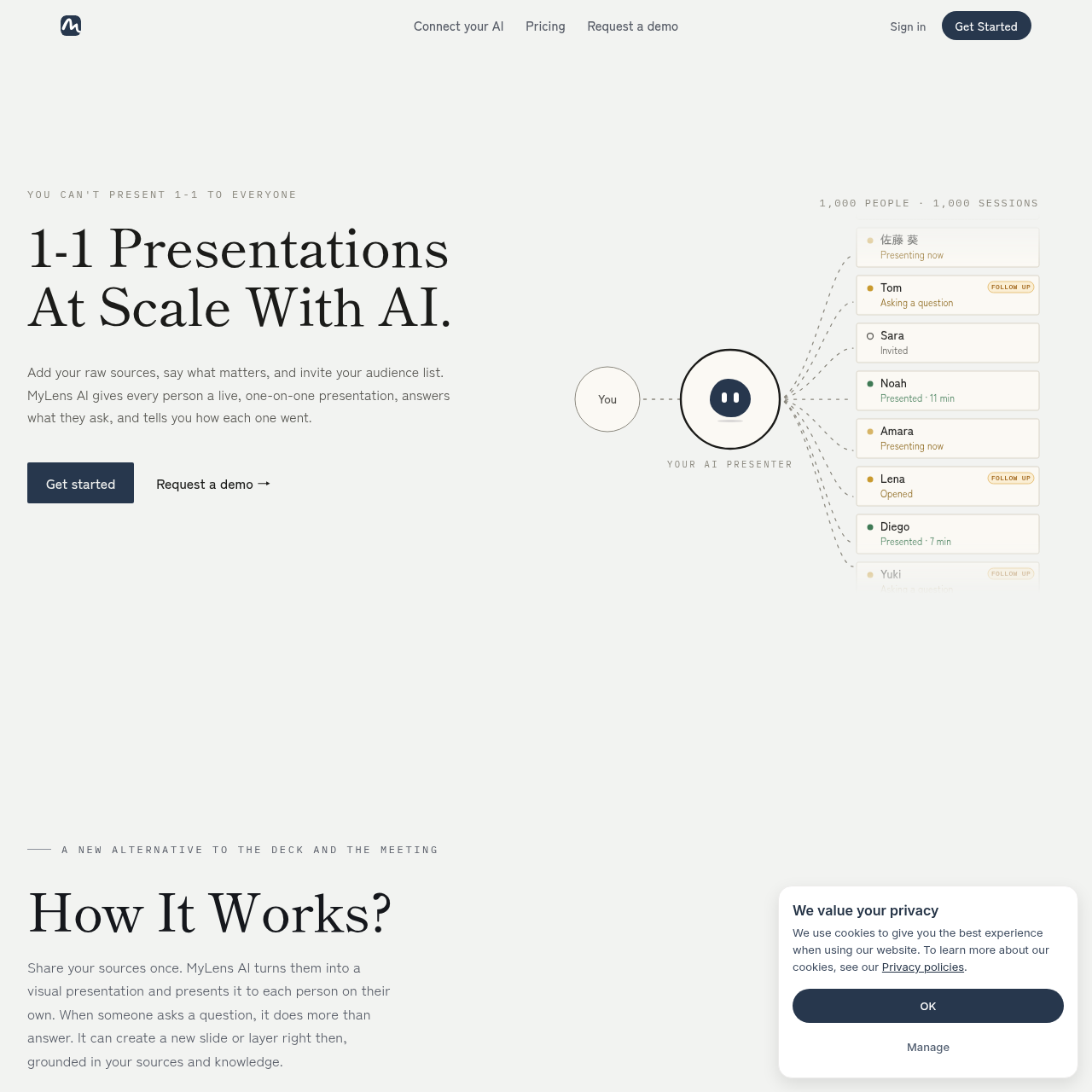
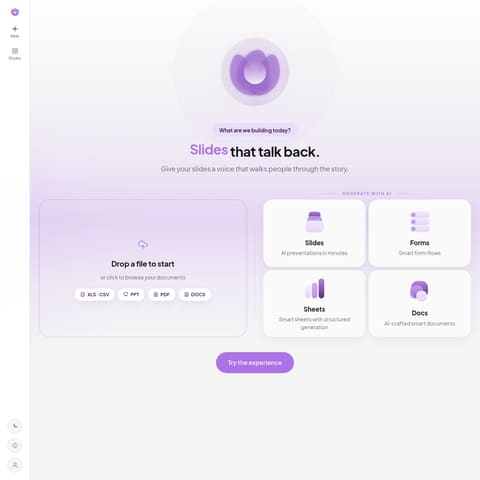
MyLens is an AI presentation platform that turns raw documents and media into interactive visual presentations, delivering automated one-on-one walkthroughs to individual audience members at scale.
Slides & PresentationsPresents interactive walkthroughs…Generates real-time visual responses,…Restricts AI answers strictly to…Identifies missing information in…
Estimated monthly visits
94K
Data period:
Listed on AIToolly
What Is MyLens? Product Overview
What the product does and how it is positioned
MyLens is an AI presenter platform designed to automate one-on-one visual presentations at scale. Users supply raw reference materials—such as documents, audio files, spreadsheets, video recordings, and web links—and the platform converts them into structured visual presentations without requiring manual slide design.
Each invited viewer accesses their own private presentation session using a unique link or access code. During the walkthrough, participants can ask questions directly on the slides, prompting the AI to answer from the source files and dynamically generate supporting infographics or drill-down slides when needed.
The platform also provides session oversight by recording viewer engagement metrics, time spent, specific questions submitted, and follow-up alerts, while allowing presenters to configure AI permissions and connect external tools via Model Context Protocol.
What Can You Use MyLens For?
Source-supported ways to use the product
Employee Onboarding
HR teams provide structured onboarding presentations to new hires where individuals can explore material and ask clarifying questions privately.
Sales Walkthroughs
Sales professionals deliver personalized product and offer walkthroughs to prospective clients at scale.
Customer Success Updates
Account managers present renewal terms, product updates, and documentation to accounts individually.
Investor Briefings
Founders distribute private business and performance updates that investors can review and question independently.
How to Use MyLens
The documented workflow, where available
1
Add Your Sources
Upload raw files, notes, documents, recordings, spreadsheets, or links for the AI to use as grounding data.
2
Teach Your AI
Define presentation goals, audience context, tone, and specific boundaries on what the AI should avoid saying.
3
AI Creates Your Presentation
The platform automatically generates visual slides derived directly from the provided source materials.
4
Choose What the AI May Do
Configure live session permissions, such as allowing the AI to generate new slides, drill down into topics, and cite sources.
5
Invite Your Audience
Send invitations containing private session links or six-digit access codes to designated audience members.
6
Go Live and Review Sessions
The AI presents to viewers independently while logging attendance status, session duration, asked questions, and follow-up needs.
Interactive Presentation Engine
MyLens operates as an automated presentation system that hosts concurrent, private sessions for individual participants. Instead of relying on pre-rendered video or static slide decks, the engine delivers an interactive walkthrough tailored to each viewer's pace.
When a viewer submits a question, the system queries the uploaded source knowledge to formulate an answer. If textual explanations are insufficient, the AI can construct new visual slides, infographics, or drill-down layers in real time while maintaining strict grounding in the provided reference materials.
Delivers independent walkthroughs to individual attendees using private session codes
Generates contextual infographics and slide additions on demand during attendee questioning
Constrains responses to provided source files and openly flags unanswerable inquiries
Provides individual reporting covering time spent, viewer status, and flagged follow-ups
What to Test Before Choosing MyLens
Checks to run with your own material and workflow
Verify that all intended source formats, including documents, recordings, and external links, are properly ingested before presentation generation.
Confirm that AI permissions, including real-time slide generation and source citations, are set in accordance with organization guidelines.
Check that attendee tracking records completion status, elapsed time, and unanswered question flags accurately in the session dashboard.
Review the designated knowledge instructions to verify that tone, audience constraints, and excluded topics are properly defined.
Answers based on the source-checked product record
Do presenters need to create slides before using MyLens?+
No pre-made slides are required. Presenters upload raw source materials such as documents, recordings, spreadsheets, and links, and MyLens automatically converts them into visual presentation slides.
How does the AI presenter answer audience questions during a live session?+
The AI presenter answers questions using only the uploaded sources. When a text explanation is not enough, it can generate a new visual slide or drill-down layer in real time, or flag questions when information is missing.
How do audience members access their presentations?+
Audience members receive an invite with a private link or a unique six-digit code to open and experience their one-on-one presentation independently.
What session data and metrics are available after presentations?+
Presenters can review metrics for every individual participant, including whether the session was opened or completed, total time spent, specific questions asked, and follow-up indicators.
How does MyLens handle data privacy and security?+
Uploaded data is private to the user workspace, encrypted, and never used to train AI models. Workspace owners can permanently delete their data at any time.
More Slides & Presentations AI tools
Explore other recently added tools in the same category.