Codex Pets
Mastering Codex App Settings: A Complete Guide to Optimizing Your AI Development Environment
Discover how to configure the Codex app to suit your development needs. This guide covers Codex settings, agent configuration, personalization, and advanced features like MCP integrations and Codex pets.
2026-05-06
204300.0K
Codex Pets Product Information
Mastering Your Development Environment: The Ultimate Guide to Codex App Settings
In the modern landscape of AI-assisted development, the Codex ecosystem stands out as a versatile powerhouse, offering tools ranging from the Codex API and Codex CLI to dedicated IDE extensions. At the heart of the user experience is the Codex app, a sophisticated interface designed to streamline your coding workflows. To truly leverage the power of this tool, understanding the Codex app settings is essential.
This comprehensive guide explores the various configuration options available within the Codex environment, ensuring you can tailor the Codex agent to your specific professional requirements.
What's Codex?
Codex is an advanced AI development platform that provides a suite of tools including an API, CLI, and a standalone App. It is designed to assist developers through various interfaces, such as Worktrees, Local Environments, and Integrations with popular platforms like GitHub. The Codex app serves as a central hub where users can manage Automations, interact with Subagents, and utilize Computer Use capabilities. By using the Codex app settings, users can synchronize their preferences across the Codex CLI and IDE extensions, ensuring a consistent and high-performance development experience.
Features of Codex App Settings
The Codex app settings panel is the command center for your AI assistant. You can access it via the app menu or by using the keyboard shortcut Cmd+,. Below are the primary features you can configure:
1. General Configuration
Within the General section, you can dictate the fundamental behavior of the Codex app.
- File Management: Choose where files open and control the volume of command output displayed in threads.
- Prompt Control: Require Cmd+Enter for multiline prompts to prevent accidental submissions.
- System Behavior: Prevent your computer from sleeping while a Codex thread is actively running.
2. Appearance and Customization
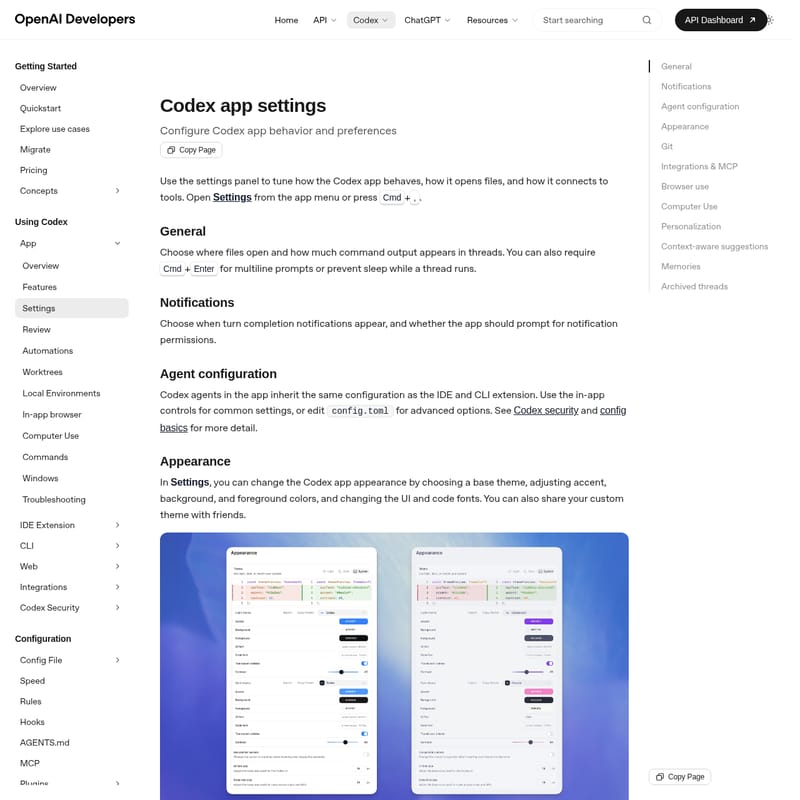
Codex allows for deep visual personalization. In the Appearance settings, you can:
- Select a base theme.
- Adjust accent, background, and foreground colors.
- Change UI and code fonts to improve readability.
- Share Themes: Once you have perfected your custom theme, you can share it with others.
Codex Pets
For a more engaging experience, the Codex app features Codex pets—optional animated companions.
- Selection: Choose from built-in pets or refresh custom ones from your local Codex home.
- Interaction: Use the
/petcommand in the composer or toggle the floating overlay using Cmd+K or Ctrl+K. - Overlay Status: The floating overlay keeps your active Codex work visible, reflecting whether the Codex agent is running, waiting for input, or ready for review.
3. Agent Configuration and Security
Codex agents inherit configurations from both the IDE and CLI extensions. While you can use in-app controls for common settings, advanced users can edit the config.toml file for granular control. This section also handles Authentication and Agent approvals & security to ensure your code remains protected.
4. Git and Version Control
Standardize your workflow with dedicated Git settings:
- Branch Naming: Set standards for how Codex names new branches.
- Push Logic: Toggle whether Codex is permitted to use force pushes.
- Automated Documentation: Configure prompts that Codex uses to generate commit messages and pull request descriptions.
5. Integrations and MCP
Codex utilizes the Model Context Protocol (MCP) to connect with external tools.
- Servers: Enable recommended MCP servers or add your own custom servers.
- OAuth: The app manages authentication flows for servers requiring OAuth.
- Consistency: Since MCP configurations live in
config.toml, these settings apply globally to the Codex CLI and IDE extensions.
6. Browser and Computer Use
- Browser Plugin: Manage the bundled Browser plugin and maintain lists of allowed or blocked websites. Codex will always ask for permission before accessing a new site unless previously authorized.
- Computer Use (macOS): Review desktop-app access and permissions. Note that system-level access like Screen Recording or Accessibility must be managed within macOS Privacy & Security settings. Note: This feature is currently unavailable in the EEA, UK, or Switzerland.
7. Personalization and Memories
- Personality: Choose between Friendly, Pragmatic, or None. Selecting 'None' disables personality instructions entirely.
- Custom Instructions: Edit your personal instructions which are saved in
AGENTS.md. - Memories: Enable Memories to allow Codex to carry context from past threads into future tasks, improving long-term project awareness.
How to Use Codex App Settings
Adjusting your Codex environment is straightforward. Follow these steps to tune your experience:
- Open Settings: Navigate to the app menu or press Cmd+,.
- Navigate Sections: Use the sidebar to switch between General, Appearance, Git, and Personalization.
- Configure Agents: For basic changes, use the UI toggles. For advanced tweaks, locate your
config.tomlfile as referenced in the Codex security documentation. - Manage Pets: To add a new pet, install the
hatch-petskill via the command line:$skill-installer hatch-pet
Then, reload skills from the command menu (Cmd+K or Ctrl+K) and ask the skill to create a pet based on your projects. - Review Archives: If you need to restore an old conversation, go to the Archived threads section and select Unarchive.
Use Case
Scenario: Streamlining Enterprise Team Workflows
A development lead can use the Codex app settings to ensure all team members have a unified experience. By standardized Git branch naming conventions and sharing a custom high-contrast Appearance theme, the team maintains consistency. They can also enable MCP servers to connect their internal documentation tools, allowing the Codex agent to provide context-aware suggestions based on private company data stored in config.toml. With Memories enabled, the Codex app remembers previous architectural decisions, making it a powerful long-term partner for complex enterprise projects.
FAQ
Q: How do I open the Codex app settings quickly?
A: You can use the keyboard shortcut Cmd+, on macOS or access it via the app menu.
Q: Can I use the Computer Use feature in Europe?
A: At launch, the Computer Use feature is not available in the EEA, the United Kingdom, or Switzerland.
Q: Where are my custom instructions stored?
A: Custom instructions are updated and stored in your AGENTS.md file.
Q: How do I toggle the floating pet overlay?
A: You can use the Wake Pet or Tuck Away Pet options in Settings > Appearance, or use the command menu (Cmd+K / Ctrl+K) to toggle the overlay.
Q: Does the Codex app ask before using a website?
A: Yes, Codex asks for permission before using a website unless you have explicitly added it to the allowed list in the Browser use settings.
Q: What is MCP in Codex?
A: MCP stands for Model Context Protocol, which allows Codex to connect to external tools and servers. These configurations are shared across the app, CLI, and IDE extensions.