Google Workspace CLI
gws: The Ultimate Google Workspace CLI for Humans and AI Agents
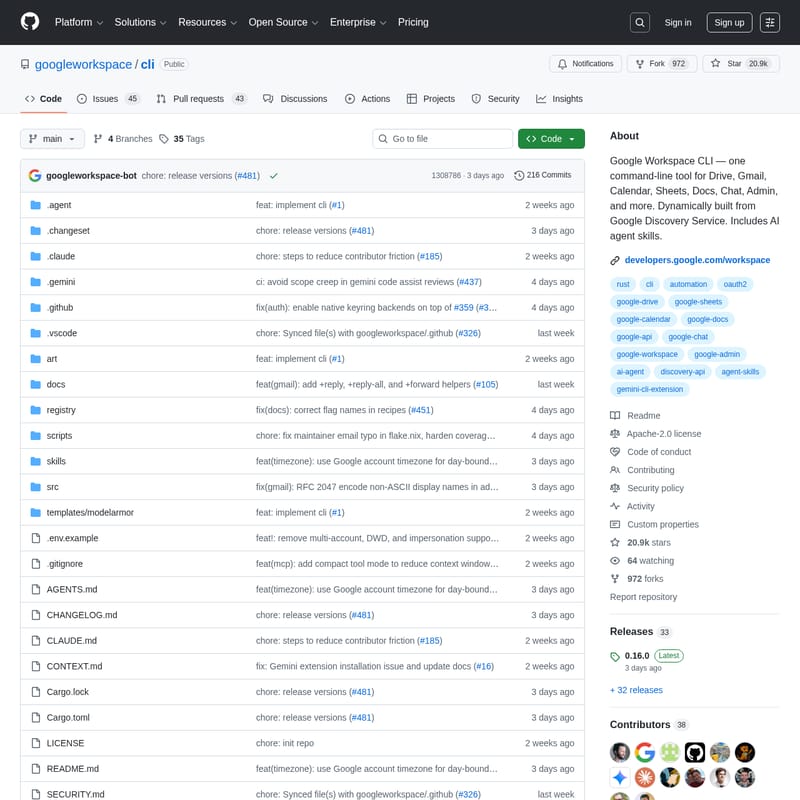
The Google Workspace CLI (gws) is a powerful, dynamically-built command-line interface designed to manage the entire Google Workspace ecosystem, including Drive, Gmail, Calendar, Sheets, and more. Built with Rust, it leverages Google's Discovery Service to provide up-to-the-minute API support without manual updates. Whether you are a developer looking for zero-boilerplate automation or an AI agent requiring structured JSON outputs, gws offers 40+ built-in agent skills, automated pagination, and secure OAuth2 authentication to streamline your productivity across all Google services.
2026-03-17
615200.0K
Google Workspace CLI Product Information
Google Workspace CLI (gws): One CLI for All of Google Workspace
What's Google Workspace CLI (gws)?
The Google Workspace CLI, commonly referred to as gws, is a comprehensive command-line tool designed to interact with every Google Workspace API, including Google Drive, Gmail, Calendar, Sheets, Docs, and Chat. Unlike static tools, the Google Workspace CLI is built for both humans and AI agents, offering a seamless interface with zero boilerplate and structured JSON output.
One of the most innovative aspects of the Google Workspace CLI is its dynamic nature. It does not ship with a static list of commands; instead, it reads Google's own Discovery Service at runtime. This means that whenever Google adds a new API endpoint or method to Google Workspace, the Google Workspace CLI automatically picks it up, ensuring you always have access to the latest features.
Note: This is not an officially supported Google product. It is an open-source project under active development.
Features
The Google Workspace CLI is packed with features designed for efficiency and modern workflows:
- Dynamic Command Generation: Automatically builds its entire command surface by fetching Google’s Discovery Document.
- AI Agent Integration: Includes over 100 Agent Skills and 50+ curated recipes for Gmail, Drive, and Sheets, making it perfect for LLM-based management.
- Structured JSON Output: Every response is formatted as structured JSON, ideal for piping into tools like
jqor feeding into AI models. - Auto-Pagination: Supports streaming paginated results as NDJSON with flags like
--page-all. - Secure Authentication: Supports OAuth2 with AES-256-GCM encryption at rest, utilizing OS keyrings for security.
- Helper Commands: Includes hand-crafted helpers (prefixed with
+) for common tasks like+sendfor Gmail or+agendafor Calendar. - Dry-Run Mode: Use the
--dry-runflag to preview requests before they are executed. - Multipart Uploads: Easily upload files to Google Drive with metadata in a single command.
How to Use the Google Workspace CLI
Installation
To get started with the Google Workspace CLI, you can install it via npm:
npm install -g @googleworkspace/cli
Alternatively, users on macOS or Linux can use Homebrew:
brew install googleworkspace-cli
Initial Setup and Authentication
The Google Workspace CLI requires a Google Cloud project. The fastest way to set this up is through the automated setup command:
- Run
gws auth setupto walk through the Google Cloud project configuration. - Run
gws auth loginto perform the OAuth login and select your required scopes.
Common Commands
Once authenticated, you can use the Google Workspace CLI for various tasks:
- List Drive Files:
gws drive files list --params '{"pageSize": 10}' - Create a Spreadsheet:
gws sheets spreadsheets create --json '{"properties": {"title": "Q1 Budget"}}' - Check Calendar Agenda:
gws calendar +agenda - Send a Chat Message:
gws chat spaces messages create --params '{"parent": "spaces/xyz"}' --json '{"text": "Deploy complete."} '
Use Case
1. Developers and DevOps
Developers can use the Google Workspace CLI to automate administrative tasks without writing complex scripts or handling manual curl calls. For example, syncing files to Google Drive or triaging Gmail inbox summaries via the terminal saves significant time.
2. AI Agents and LLMs
Because the Google Workspace CLI provides structured JSON and includes specific "Agent Skills," it serves as a bridge for AI agents to interact with Workspace data. An AI agent can use gws to read documents, summarize emails, or manage calendar events autonomously.
3. Headless Environments and CI/CD
By exporting credentials via gws auth export, the Google Workspace CLI can be utilized in headless CI/CD environments. You can set the GOOGLE_WORKSPACE_CLI_CREDENTIALS_FILE environment variable to allow your automated pipelines to interact with Google Workspace services securely.
FAQ
Q: Why do I get an "Access blocked" error during login? A: This usually happens when your OAuth app is in testing mode. You must go to the Google Cloud Console, navigate to the OAuth consent screen, and add your email address to the "Test users" list.
Q: Does the Google Workspace CLI require the Rust toolchain for installation? A: No. While built with Rust, the npm package and Homebrew formula provide pre-built native binaries for your OS and architecture.
Q: How do I handle Google Sheets ranges in the CLI?
A: Because bash interprets the ! character used in Sheets ranges as history expansion, you should always wrap your parameters in single quotes, for example: '{"range": "Sheet1!A1:C10"}'.
Q: What are the "+ " commands?
A: These are "Helper Commands" that simplify complex API interactions. For example, +send in Gmail handles the complexities of message formatting for you, providing a more human-friendly experience than the raw Discovery API methods.
Q: Can I use a Service Account?
A: Yes. You can point to your service account key file using the GOOGLE_WORKSPACE_CLI_CREDENTIALS_FILE environment variable to enable server-to-server communication.