ChatGPT for Excel
ChatGPT for Excel: Build, Analyze, and Update Spreadsheets Using Plain Language AI
ChatGPT for Excel is a powerful beta add-in that brings OpenAI's language model directly into your workbooks. Available for Plus, Pro, Business, Enterprise, Edu, and Teacher users in the U.S., Canada, and Australia, it allows users to build full spreadsheets from scratch, get cross-tab insights, and fix formulas using natural language. This tool enhances productivity by allowing you to clean data, summarize trends, and update spreadsheets in real-time without leaving Excel. It prioritizes transparency by explaining its actions and linking answers to specific cells, ensuring you maintain full control over your data and formatting.
2026-03-08
5723686.4K
ChatGPT for Excel Product Information
ChatGPT for Excel: Transform Your Spreadsheets with AI-Powered Productivity
In the modern business landscape, data is king, but managing that data can be time-consuming. ChatGPT for Excel is a revolutionary beta tool designed to bridge the gap between complex data management and natural language. By integrating ChatGPT for Excel directly into your workbook, you can turn simple conversations into fully functional spreadsheets in minutes, ensuring your projects move forward faster than ever before.
What's ChatGPT for Excel?
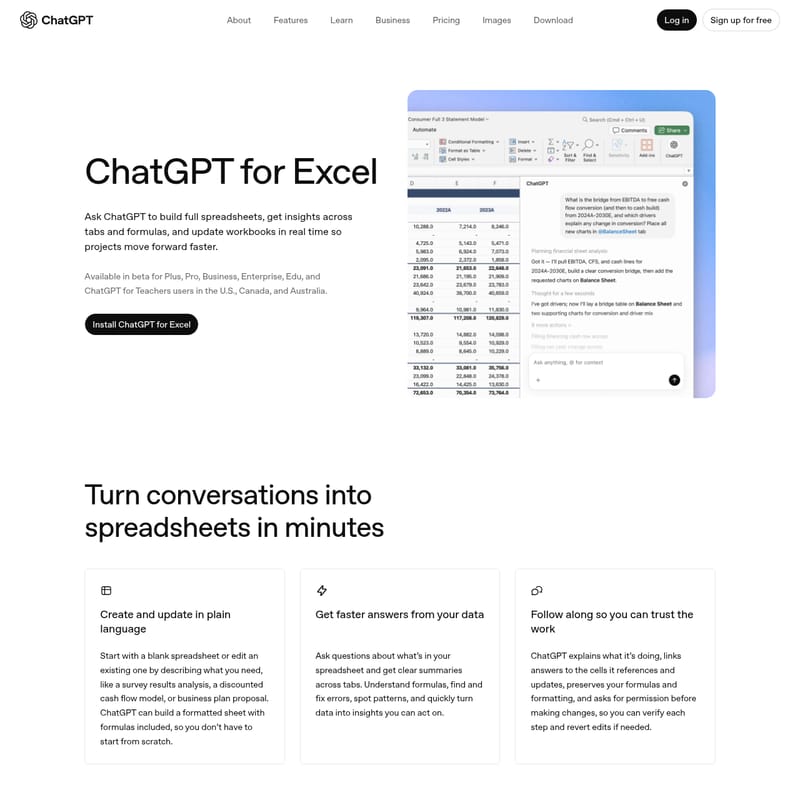
ChatGPT for Excel is a specialized add-in that allows users to ask ChatGPT to build full spreadsheets, derive insights across multiple tabs, and update workbooks in real-time. Unlike traditional spreadsheet tools that require manual formula entry and data cleaning, ChatGPT for Excel understands plain language instructions. It is currently available in beta for users in the U.S., Canada, and Australia who have a ChatGPT Plus, Pro, Business, Enterprise, Edu, or ChatGPT for Teachers subscription.
This tool is specifically built for spreadsheet work, enabling ChatGPT to write updates directly into your sheet. It functions as a collaborative partner that helps you build, analyze, and update data without ever switching between different applications.
Features of ChatGPT for Excel
ChatGPT for Excel offers a suite of powerful features designed to streamline your workflow and enhance your data accuracy:
- Plain Language Creation: Start with a blank sheet or edit existing ones by simply describing what you need. Whether it is a business plan proposal or a discounted cash flow model, ChatGPT for Excel builds the sheet with formulas included.
- Cross-Tab Insights: Get faster answers from your data by asking questions about information stored across different tabs. ChatGPT for Excel provides clear summaries and spots patterns instantly.
- Formula Assistance: Understand complex formulas, find and fix errors (such as those pesky #REF! or #VALUE! errors), and get suggestions for clearer alternatives in plain English.
- Transparent Actions: The tool explains every step it takes, linking answers to the specific cells it references. It preserves your formatting and always asks for permission before making significant changes.
- Real-Time Updates: Update tables to reflect new assumptions and receive a summary of what changed instantly.
- Data Cleaning: Automatically standardize formatting, fix inconsistent labels, and remove duplicates to keep your workbook professional.
How to Use ChatGPT for Excel
Integrating ChatGPT for Excel into your daily routine is a straightforward process. Follow these steps to get started:
- Installation: Open Microsoft Excel and navigate to the Home tab. Click on Add-ins and search for "ChatGPT."
- Add to Ribbon: Once found, add the tool. You will see ChatGPT for Excel appear in the ribbon above your workbook.
- Sign In: Open the add-in and sign in using the OpenAI account associated with your supported plan (Plus, Pro, Business, Enterprise, Edu, or Teachers).
- Interact: Start typing your requests in the ChatGPT pane. You can ask it to create trackers, analyze spending, or summarize survey responses.
- Review: Always verify the calculations and edits. ChatGPT for Excel will highlight the cells it modified so you can revert edits if needed.
Use Case Scenarios
There are countless ways to leverage ChatGPT for Excel to improve your business and personal productivity:
- Financial Analysis: Create a personal expense tracker by uploading bank and credit card statements. Ask the AI to build an analysis of spending patterns and suggest budgeting ideas.
- Project Management: Build a comprehensive project tracker complete with owner columns, deadlines, and status updates.
- Data Summarization: Group hundreds of survey responses by theme and summarize the key insights for a presentation.
- Trend Spotting: Summarize trends across multiple tabs and ask the AI to call out anything unusual or outlier data points.
- Formula Debugging: If you encounter an error in a specific cell, ask, "Why am I getting an error in cell B145?" to receive an immediate explanation and fix.
FAQ
How is data handled for ChatGPT for Excel users?
By default, data shared with ChatGPT for Excel is not used to improve models for ChatGPT Business, Enterprise, Edu, and ChatGPT for Teachers users.
Can Enterprise administrators control access?
Yes. For ChatGPT Enterprise workspaces, this feature is disabled by default. Administrators can enable it and manage access via role-based controls in workspace settings.
What does "beta" mean for this product?
As an early release, features and performance may change. Results may occasionally be incomplete or incorrect. It is essential to review all formulas and calculations before relying on them, as ChatGPT for Excel is not a substitute for professional judgment.
Is ChatGPT for Excel available worldwide?
No. During the beta phase, it is only available to supported plan users in the U.S., Canada, and Australia.
What are the current limitations?
Currently, ChatGPT for Excel does not support Office Scripts, Power Query, Pivot/Data Models, data validation, named ranges, slicers, timelines, or VBA automation. For very large workbooks, some data may exceed the context window, leading to partial results.
What file types can I upload for analysis?
You can upload a variety of files to assist your work, including:
- Spreadsheets: Excel, CSV, TSV, IIF.
- Documents: PDF, Word (.docx), RTF, Pages.
- Images: JPEG, PNG, GIF.
- Code & Text: JSON, HTML, Markdown, and more.
- Limits: Up to 20 attachments per message with a 25MB maximum per file.
How does it differ from Atlas?
While Atlas is best for in-browser help and summarizing web pages, ChatGPT for Excel is built specifically for spreadsheet environments, allowing for direct cell edits and complex internal calculations.