Computer Use in Claude Code
Claude Code Computer Use: macOS Automation and GUI Control for Developers
Claude Code Computer Use is a breakthrough research preview for macOS that allows the Claude CLI to interact with your computer's graphical user interface. By enabling the computer-use MCP server, developers can empower Claude to open native applications, click buttons, type text, and capture screenshots. This feature bridges the gap between terminal-based coding and manual GUI testing, enabling automated end-to-end UI testing, visual bug reproduction, and native app validation. Designed with security in mind, it includes per-session app approvals and a global escape key, ensuring that Claude only interacts with the specific tools and windows you authorize while keeping your terminal hidden for privacy.
2026-04-02
132500.0K
Computer Use in Claude Code Product Information
Claude Code: Mastering Computer Use for macOS Automation
Claude Code has evolved beyond simple text-based interactions. With the introduction of the computer use research preview, developers can now leverage Claude Code to interact directly with the macOS graphical user interface (GUI). This transformative feature allows Claude Code to bridge the gap between writing code in the terminal and verifying it in native applications.
What's Claude Code Computer Use?
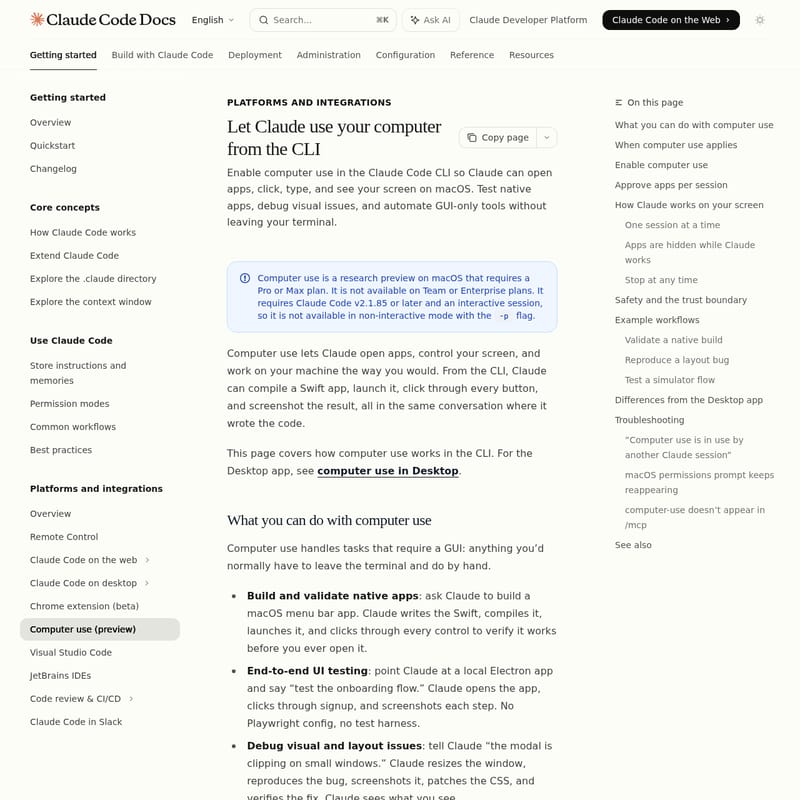
Claude Code computer use is a specialized capability available in Claude Code v2.1.85 or later that enables the AI to "see" and interact with your screen. Unlike traditional terminal tools that are confined to shell commands, computer use allows Claude Code to launch native macOS apps, navigate menus, click buttons, and type just like a human user would.
This feature is implemented as a built-in Model Context Protocol (MCP) server named computer-use. It is specifically designed for tasks that lack a CLI or API, such as testing a Swift app, driving an iOS Simulator, or debugging CSS layout issues in a live environment. By using Claude Code, developers can automate the entire lifecycle of a feature—from writing the initial code to performing visual QA—without ever leaving their terminal session.
Key Features of Claude Code Computer Use
Claude Code offers a robust suite of tools within the computer use framework to ensure efficient and safe automation:
- Native App Interaction: Claude Code can open, control, and screenshot any approved macOS application.
- Built-in MCP Server: The
computer-usefunctionality is integrated directly into the Claude Code architecture, making it easy to enable via the/mcpmenu. - Intelligent Tool Selection: Claude Code is smart enough to prioritize precise tools (like Bash or MCP servers) before falling back to the broader computer use screen control.
- Visual Debugging: Claude Code can resize windows to reproduce responsive design bugs and capture screenshots to verify UI state.
- Privacy and Safety Guardrails:
- Terminal Exclusion: Claude Code never sees its own terminal window in screenshots to prevent feedback loops.
- Per-Session Approval: You decide which apps Claude Code can touch during every individual session.
- Global Escape: Users can instantly stop Claude Code by pressing the
Esckey.
- Machine-Wide Locking: To prevent conflicts, only one Claude Code session can utilize computer use at a time.
Use Cases for Claude Code
How can you integrate Claude Code into your daily development workflow? Here are several powerful use cases:
1. Build and Validate Native Apps
When developing for macOS, you can ask Claude Code to compile your Swift code using xcodebuild, launch the resulting app, and click through the interface to ensure no crashes occur. This provides a hands-free verification layer for native development.
2. End-to-End UI Testing
Instead of configuring complex test harnesses like Playwright for local Electron apps, simply point Claude Code at the application. It can walk through onboarding flows, sign up for accounts, and document the process via screenshots.
3. Reproducing Layout and Visual Bugs
If a user reports a clipping issue on small screens, Claude Code can manually resize the application window until the bug is reproduced. It can then analyze the CSS, apply a patch, and re-verify the fix visually.
4. Driving GUI-Only Tools
Claude Code can interact with proprietary software, hardware control panels, or design tools that do not offer an API. This makes it possible to automate workflows in environments that were previously siloed from the command line.
How to Use Computer Use in Claude Code
Follow these steps to enable and manage computer use within your Claude Code environment:
Step 1: Enable the Server
In an interactive Claude Code session, enter the following command:
/mcp
Navigate the list to find the computer-use server and select Enable. This setting is saved per project.
Step 2: Grant macOS Permissions
Upon the first execution, macOS will prompt you for two specific permissions:
- Accessibility: Allows Claude Code to type and click.
- Screen Recording: Allows Claude Code to capture visual data. Note: You may need to restart Claude Code after granting these permissions.
Step 3: Approve Apps
When Claude Code attempts to open an app, it will request permission in the terminal. You can choose to Allow or Deny for that specific session. Note that apps like Terminal or System Settings will trigger additional warnings due to their high level of system access.
Step 4: Execution and Monitoring
Once approved, Claude Code will hide other visible apps to focus on the task. You can watch the progress in your terminal. If you need to intervene, press Esc or Ctrl+C to immediately release the machine lock.
FAQ
Q: Why doesn't the computer-use server appear in /mcp? A: Ensure you are on macOS, using Claude Code v2.1.85 or later, and have an active Pro or Max subscription. This feature is not available on Team or Enterprise plans, nor is it available via third-party providers like Bedrock or Vertex AI.
Q: Can I use computer use in non-interactive mode?
A: No. Claude Code requires an interactive session for computer use. It cannot be used with the -p flag.
Q: What happens if another session is already using the computer? A: Claude Code uses a machine-wide lock. You will receive a message indicating that the lock is held by another session. You must finish or exit that session before starting a new one.
Q: Does Claude Code see my terminal when it takes screenshots? A: No. The terminal window is automatically excluded from screenshots to ensure privacy and prevent the model from seeing its own output.
Q: Is computer use available on Windows or Linux? A: Currently, computer use within Claude Code is a research preview exclusive to macOS.